Wifi Falling? Test Your Internet in 1 Minute
Announcements
You have been through the frustration of having your internet connection falling in the middle of an important meeting or during a crucial moment of your online game?
Announcements
First, it is essential to understand that internet problems they can have a variety of causes, from physical interference to improper router settings.
In this guide, you will learn how to quickly identify and resolve connection problems which affect your internet speed. In just 1 minute, you can realize a simple test to assess the condition of your internet connection.
Main Points
- Identify common causes of internet problems.
- Conduct a quick test to assess your connection.
- Understand how to improve the speed of your internet.
- Solve connection problems effectively.
- Optimize your network for better performance.
Why Is Your Internet Unstable?
Understanding why your internet is unstable is the first step to solving the problem. Connection instability can be caused by several factors, including carrier issues, excess connected devices, and physical interference.
Signs of Connection Problems
There are several signs that indicate problems with your internet connection. Pages that take a long time to load, videos that crash and calls that drop suddenly are some of the most common symptoms.If you are experiencing these problems, it is important to investigate the causes.
Impacts of an Unstable Internet
The unstable internet can have significant impacts on your work, studies and leisure time.In addition to frustration, it can compromise your productivity and the quality of online activities. Identifying the cause of the problem is crucial to find an effective solution.
By understanding the signs and impacts of connection issues, you can take steps to ensure a stable and reliable internet.This may include checking whether the problem is carrier-related, adjusting the positioning of the router, or limiting the number of connected devices.
Wifi Falling? Test Your Internet in 1 Minute
First of all, it is crucial to check the speed of your internet.Testing your connection is the first step to identify if the problem is in your network or in the service provided by the carrier.
Tools to Test Your Connection
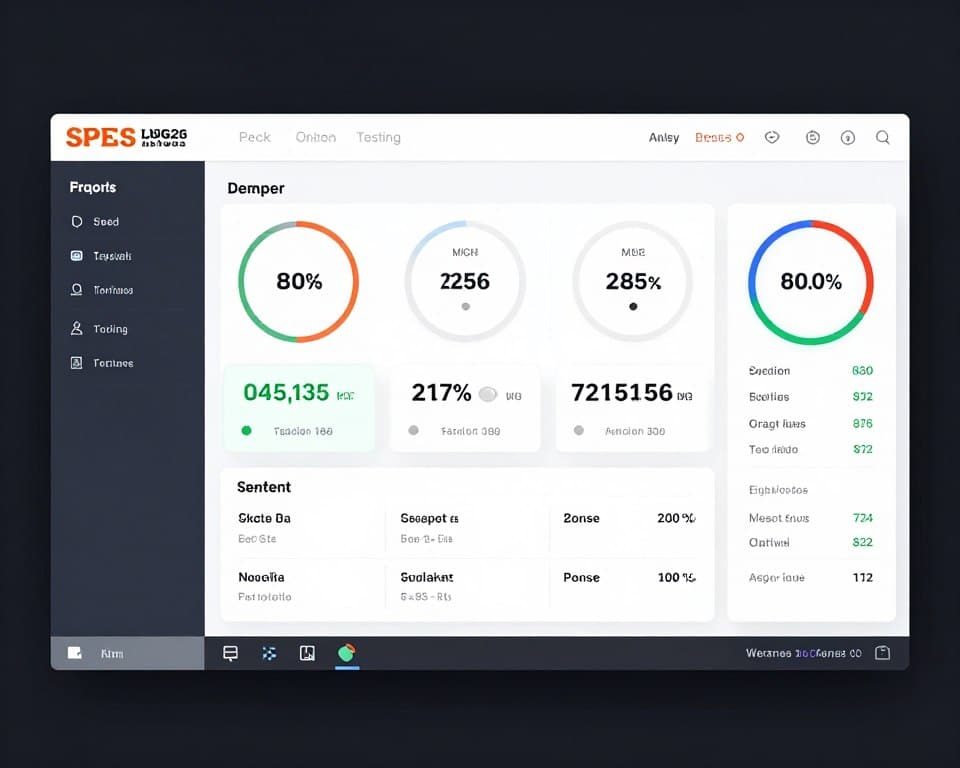
There are several free and efficient tools to test your connection.Ookla Speedtest and My Connection are great options to check the download, upload and ping speed.In addition, applications such as NetSpot, WiFi Analyzer and Fing help map the signal in your home and identify weak spots in coverage.
These tools provide accurate data that is essential to understanding the quality of your network.
How to Interpret Test Results
When interpreting the results, it is important to compare the speed obtained with the speed contracted with your operator. A significant difference may indicate problems in the delivery of the service. In addition, performing tests at different times and locations of the house helps to have a complete view of the quality of your network.
This way, you can identify patterns that help solve the problem.
Signal Problems: Obstacles and Interferences
Identifying the obstacles affecting your router signal is the first step to a stable connection.In many regions, network infrastructure does not keep up with the speed of packets offered by carriers, resulting in frequent drops and high latency.

Physical Barriers Affecting the Signal
Physical obstacles are invisible enemies of your Wi-Fi signal. Concrete walls, large mirrors, metal cabinets and even aquariums can significantly block or weaken the propagation of the signal. To minimize these obstacles, it is recommended to reposition the router in a more central place of the house.
Devices That Cause Interference
In addition to physical barriers, many electronic devices in your home can cause direct interference to your router’s signal. Operating microwaves, cordless phones, Bluetooth speakers and baby monitors are examples of devices that can compromise the quality of your Wi-Fi. Keeping the router away from these devices can help ensure a more stable and consistent signal.
By mapping your home for sources of interference and repositioning the router as needed, you can significantly improve the quality of your internet connection.
Ideal Router Positioning
Router positioning is crucial for the even distribution of the Wi-Fi signal in your home. A well-chosen location can significantly improve the quality of your internet.
Strategic Locations for Your Router
First, try to position your router in a central place of the residence, preferably at a high point and free of obstacles. This allows the Wi-Fi signal to spread evenly throughout all rooms. Strategic locations include high shelves in central corridors or tables in open areas.
Places You Should Avoid
On the other hand, it is important to avoid certain places that can impair the quality of the Wi-Fi signal. Do not place your router near the floor, inside closed cabinets, or behind televisions. Also, keep it away from large mirrors and metal objects, as these can interfere with the signal. Finally, avoid positioning the router near thick walls, especially those made of concrete or with metal structures, as they act as barriers to the Wi-Fi signal.
Optimizing Your Wi-Fi Channels
Optimizing your Wi-Fi channels is crucial for a stable and fast connection. Wi-Fi channels act as “roads” where your internet data travels. When many nearby routers use the same channel, congestion and interference occur, resulting in slowness and instability.
Difference Between 2.4 GHz and 5 GHz
The 2.4 GHz frequency offers greater range, but is more susceptible to interference and has only 11 channels available. The 5 GHz frequency provides higher speeds and suffers less interference, but has a more limited range.
How to Change Your Router Channel
To change your router’s channel, first access the settings through the browser (usually by typing 192.168.0.1 or 192.168.1.1). Locate the wireless or “Wireless” settings and select a less congested channel. Use applications such as WiFi Analyzer to identify the least used channels in your area and save the settings so that your router starts operating on the new channel.
By optimizing your Wi-Fi channels, you can significantly improve the speed and stability of your connection. Remember that choosing the right channel depends on the environment and the amount of nearby networks.
Managing Connected Devices
The number of devices connected to your Wi-Fi can be the key to a stable connection.The more devices use the same network at the same time, the harder it is to avoid a drop in internet.
Identifying Devices That Consume Too Much Band
First, identify which devices are consuming the most bandwidth.This can be done by accessing your router settings or using specific applications that show real-time data consumption streaming high definition video and large file downloads consume a lot of bandwidth.
Limiting Device Access
Once you identify the devices that consume the most bandwidth, you can limit access to these devices through QoS (Quality of Service) settings on your router. Also, consider creating specific times for activities that require a lot of bandwidth, this way, you avoid overloading your network and ensures a more stable connection for all devices.
Finally, managing connected devices not only improves the speed of your internet, but also helps keep your network secure.
Solutions to Hardware Problems
Hardware problems are a common cause of instability in the internet connection.If you are experiencing frequent drops or slow speeds, it is crucial to check if the problem is related to your equipment.
Correctly Restarting Your Modem and Router
One of the simplest and most effective solutions to connection problems is to properly restart your modem and router. To do this, completely turn off the devices from the outlet, wait at least 60 seconds, and then turn on the modem first, waiting for its stabilization before turning on the router. This process, known as “power cycling”, solves about 70% of connection problems.
When Is Time to Change Your Equipment
If restarting does not solve the problem, it is time to assess whether your equipment needs to be replaced. If your modem or router is older than 5 years or does not support recent technologies, it may be the cause of instability. Signs that it is time to switch include constant overheating, irregularly flashing lights, and frequent need for reboot.
When identifying these issues, consider upgrading your equipment to improve the stability and speed of your internet connection.
Software Updates and Settings
Keeping your router software up to date is crucial for a stable connection. A router with outdated firmware can cause network problems and instability on your internet.
Updating Router Firmware
First, it is important to understand that firmware is the internal software of your router. Manufacturers release updates to fix security flaws and improve performance. To update, access the router settings through the browser and look for the firmware update section, usually located under “Administration” or “System”.
This way, you ensure that your router is working with the latest firmware version, fixing potential bugs and improving connection stability.
Advanced Settings for Better Performance
In addition to updates, there are advanced settings that can significantly improve the performance of your network. Transmission power settings, QoS settings, and bandwidth optimization are some of the options available. So take the time to explore your router’s advanced settings and, if necessary, consult the manufacturer’s manual or website to understand how each adjustment can benefit your connection.
Finally, by adjusting these settings, you can increase the speed of your internet and improve the coverage of your network.
Conclusion
Now that you know the causes of Wi-Fi instability, it’s time to take action. First, identify the root cause of the problem through a speed test and analysis of the connection drop patterns on different devices and times.
Then apply the right solutions: reposition your router, optimize channels, manage connected devices, and update firmware. Also, remember that physical obstacles and interference from other devices can affect the signal quality in your home.
Therefore, it is important to keep an eye on new technologies and applications that can help monitor and improve your connection. Finally, if even after following all the tips your problem persists, do not hesitate to contact your carrier – you are entitled to a quality service according to the contracted plan.
This way you will be able to enjoy a stable and fast internet connection without needing technical assistance. Remember to restart the router regularly and consider changing the equipment if necessary.