Optimize your phone battery with a few taps
Announcements
Your smartphone battery discharges too fast?You are not alone in this problem. Many users face this situation daily, especially those who use intensive applications or keep several connections active.
Announcements
The good news is that there are advanced strategies and practical optimizations that you can implement right now to maximize the battery life of your phone. It is not always necessary to buy a new device or make drastic changes in its use. With some smart adjustments and the use of the right tools, you can significantly extend the time of use between one recharge and another.
Understanding the battery consumption of your device
Before optimizing, you need to understand which apps and features are consuming the most power.Each smartphone stores detailed information about battery usage, allowing you to identify the “villains” behind fast discharging.This data is critical to making conscious decisions about which adjustments to make first.
Some apps work in the background constantly, updating content and syncing data even when you’re not using them. Web browsers, social networks and messaging apps are among the biggest power consumers. When you look at your device’s battery report, you’ll notice that these apps take up the majority of your daily total consumption.
GPS is another big villain when activated permanently, consuming battery in an accelerated way. Navigation apps, social networks with geolocation and map services drain the battery quickly when they keep location tracking active. This functionality is convenient, but you can selectively disable it to save significant energy.
Advanced energy optimization strategies
The most powerful strategy is to implement granular permission management for each app. Instead of just uninstalling problematic apps, you can allow them to work, but revoking their access permissions to location, camera and other sensors. This maintains the functionality of the app while dramatically reducing its power consumption.
Enable dark mode in all possible applications, especially on devices with AMOLED screens. Each pixel erased on these screens saves a real amount of energy, resulting in several additional hours of autonomy. Many modern applications already offer this option, and your operating system probably has a global dark mode that you can activate for immediate gains.
Set up apps to sync data less often. Instead of syncing email every five minutes, you can adjust to 15 or 30 minutes without losing important information.Manual sync is also a viable option for apps that you don’t need to constantly update. This configuration change alone can save you 10 to 15% battery life daily.
Utilizing battery maximizing applications efficiently
A well-chosen battery maximizer app monitors activities in real time and provides personalized recommendations based on your specific usage pattern. These tools analyze what percentage of your battery each process consumes and suggest automatic optimizations.The best approach is to choose a tool that offers granular control rather than simply closing applications aggressively.
Look for maximizers that allow you to create custom battery profiles for different situations. A work profile can keep data connections active but disable social media synchronization. Another travel profile can enable extreme savings by disabling background updates completely.
Temperature monitoring is another advanced feature that some maximizers offer. Your smartphone consumes more battery when it heats up, so these tools alert you when the temperature rises and suggest disabling processing-intensive functionality. Keeping your device cool naturally extends battery life and improves overall performance.
Hardware and connectivity optimizations
Bluetooth, WiFi and mobile data compete for power features. You don’t have to keep everyone on all the time. Turn off Bluetooth when not using headphones or smartwatches, as it consumes power even in idle mode.Wifi drains less battery than mobile data when connected, so use WiFi whenever possible at home or at work.
The display accounts for 30 to 40% of total battery consumption in most cases. Adjust the automatic brightness to a moderate rather than maximum level, or use adaptive brightness options that dynamically reduce as lighting conditions change. Reducing the screen refresh rate to 60Hz instead of 120Hz also offers significant gains with minimal visual impact for most activities.
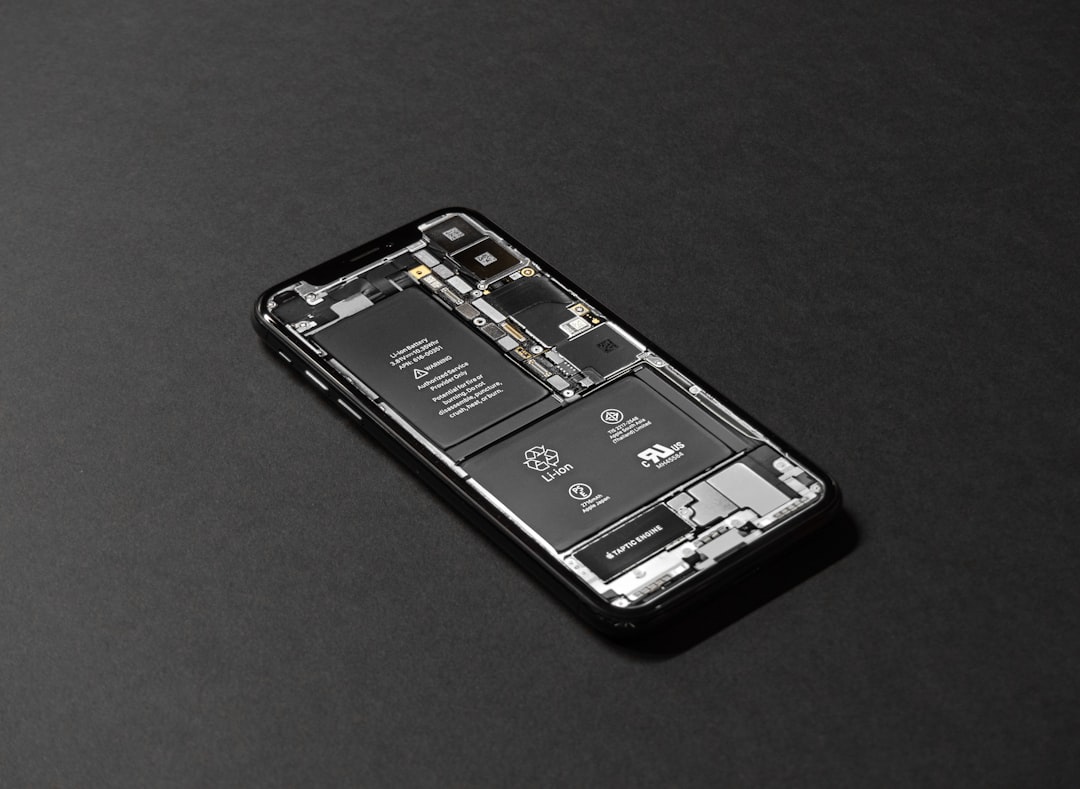
Turn off vibrations for notifications and interactions, as the vibrating motor consumes more energy than sounds. If you need feedback, choose moderate volume sounds instead of intense vibrations.Many users do not realize how much vibrations drain the battery until you make this simple change.
Operating system settings for maximum efficiency
Most modern operating systems offer battery-saving mode that you should activate when the load drops below 20 to 30%. This mode limits performance, reduces synchronization and disables unnecessary visual effects.The experience is still acceptable for most tasks, and you gain several additional hours of use.
Set up app updates to occur only when connected to WiFi and on charging. System updates should be scheduled for nighttime periods when your device is charging. This way, you don’t waste battery with these heavy processes during the day when you really need autonomy.
Turn off push notifications for apps that aren’t critical. Each notification wakes up your processor and screen, consuming power even if you don’t see it. Keep notifications only for important messages and calls. You can still check social networks and emails manually when you have time, saving battery in the process.
Daily habits that amplify battery life
Charge your mobile phone regularly to keep the battery between 20 and 80%, avoiding frequent full discharges. Modern batteries degrade faster when you completely exhaust them or keep them constantly at 100%. This optimized charge cycle extends the battery life by 30 to 40% compared to traditional use.
Close unnecessary apps that run in the background even when you don’t actively use them. Some apps continue to consume even minimized data and processor. A weekly check of which apps are running in the background allows you to disable apps that don’t add real value.
Use data connection only when needed instead of keeping mobile data always on. For most people, connecting to WiFi at home and at work is enough. Enabling data only when leaving these locations saves battery life for the rest of the day, especially if you don’t need to be constantly online for critical applications.
Reduce the wait time until the device goes into auto-rest to 30 seconds or less. The faster your screen shuts down after inactivity, the less energy it wastes. This setting does not affect your experience, as the screen instantly returns when you resume use.
Continuous monitoring and progressive adjustments
Establish a weekly routine of reviewing your device’s battery consumption data. Note which apps have increased their consumption and investigate why. An app that used to consume 5% of the battery but now consumes 15% may have a problematic update that deserves your attention. This proactive monitoring prevents small problems from turning into large drainages.
Test different combinations of settings and track the impact of each change on actual autonomy. You may find that a specific change offers more benefit than others. Some users gain more time by disabling automatic synchronization, while others see greater improvements by adjusting the screen.
Document which setting offers the best balance of autonomy and functionality for you. Some optimizations can reduce the user experience if they are too aggressive. The goal is to find the optimal point where you have enough battery for your day without sacrificing features that really matter. This progressive customization takes time, but offers long-lasting results far superior to generic solutions.