How to Clean iPhone Memory: Practical Guide
Announcements
Your iPhone memory gets full quickly, slowing your device down and crashing apps.You can reclaim space and improve your phone’s performance without losing important data.
Announcements
Cleaning your iPhone memory is an essential task to keep your device running quickly and efficiently. When the available space decreases, the operating system cannot perform basic tasks fluidly, affecting everything from opening apps to capturing photos and videos. This practical guide will show you how you can free up space and optimize your device in a simple and safe way.
Understand how iPhone memory works
Your iPhone storage is divided between the operating system, installed apps, photos, videos, documents and data cache. Apple reserves approximately 5 to 10 GB for iOS only, leaving the rest available for your personal contents. When the free space is below 1 GB, the iPhone begins to reduce performance automatically to protect the system.
There are two types of storage you need to understand: permanent storage, where your data is physically saved, and RAM, which works as a temporary workspace. When you talk about “cleaning memory”, you are usually dealing with the first type, removing unnecessary files to free up space. The iPhone has RAM between 3 GB and 6 GB depending on the model, and you can not increase it or remove it as in Android.
Knowing this structure helps you understand why certain strategies work better than others to clean your iPhone’s memory. Removing heavy apps frees up more space than clearing the cache, for example, because apps include resource files that take up hundreds of megabytes.
Check the available space on your iPhone
Before you start cleaning up memory, you need to know exactly how much space you’re using and what’s consuming the most. Go to Settings, then General, and tap iPhone Storage to see a detailed list of all apps sorted by size. This view shows which apps are consuming the most space and helps you prioritize which ones to remove or update.
The storage screen also displays the total amount of free space on your device and offers Apple automatic recommendations to free up space. You will see indicative colors: green means good available space, yellow indicates limited space and red means it is practically full. This information is crucial to understand the urgency of cleaning iPhone memory and which strategy to use first.
Some iPhone models also show how much space each category (Photos, Videos, Documents, etc.) is taking up. Use this information to identify if your photos are filling up your iPhone or if they are the applications that need to be reviewed. This initial diagnosis prevents you from deleting information that you consider important.
Remove apps you no longer use
Delete apps is the most efficient way to free up space on iPhone, especially large apps like games or social networks. You can do this by tapping and holding the app icon on the home screen, selecting “Remove App” and confirming deletion. This action completely removes the app and all its files from the device in seconds.
If you’re afraid of losing data or want to keep your account synced, use the “Remove from iPhone” option instead of “Delete App Permanently”. This only removes the app, but keeps your data in Apple ID to reinstall later. This approach is ideal when you want to save space but think you might need the app again in the future.
Start by removing apps you haven’t opened in the last 30 days, such as old games or test apps you’ve installed once. Many users accumulate dozens of unnecessary apps that consume gigabytes of space. Identify those that have alternatives on the web or that can be accessed by the browser, making it unnecessary to keep the app installed.
If you want to be more aggressive in cleaning, uninstall personal social networks and use the web versions or lite versions of the applications. Apps like Facebook, Instagram and TikTok usually occupy between 200 MB and 500 MB each, and their removal can release several gigabytes easily. You continue accessing these platforms through Safari without taking up permanent space.
Clean up unnecessary photos, videos, and documents
Media files are the biggest consumers of space on iPhone, with a single high-resolution photo occupying between 3 and 5 MB and videos consuming 100 MB per minute. Go to the Photos app and review your library to delete duplicate, blurred images or unnecessary screenshots. You can tap “Select” in the top right corner and mark multiple items to delete at once.
Many users store screenshots, screen videos and audio recordings that no longer serve. Before deleting, create folders in the Photos app to organize important images by date or theme, so you do not accidentally remove photos you want to keep. Automatic backup in iCloud protects your photos, so deleting them from iPhone does not lose them permanently if syncing is active.
Videos consume exponentially more space than photos, so identify long or duplicate videos and remove them. If you film with your iPhone regularly, this may be your biggest source of space shortage. Consider backing up important videos to a cloud storage service and then deleting them from your device to instantly free gigabytes.
Also go to the Downloads on iPhone section (Settings > General > iPhone Storage) and look for old documents, saved PDFs, or files from apps that can be deleted. Productivity apps like Microsoft Office or Adobe store copies of recent jobs that take up unnecessary space when they are no longer used.
Use iCloud Optimized Photos functionality
ICloud Photos offers an option called “Optimize iPhone Storage” that replaces high-resolution photos and videos with lower-resolution versions on your device, while keeping originals in the cloud. This feature frees up significant space without losing your images, as the original versions remain accessible in iCloud. Turn this function on in Settings > [Seu Nome] > iCloud > Photos and check the appropriate option.
When you enable this functionality, your iPhone keeps optimized versions of your photos and videos locally while storing the originals in the cloud.If you need full quality, the Photos app automatically downloads the original version when prompted. This system works perfectly for users who do not need offline access to photos or who rarely edit images on their iPhone itself.
The functionality is particularly useful if you have an iCloud+ plan with enough storage (200 GB or more). The feature frees up between 5 and 20 GB of local space depending on how many photos you have accumulated over the years. You keep all control over your images, but recover valuable space on the device for apps and other files.
Clear cache and application data
Unlike Android, iPhone does not offer a specific button to clear global cache, but you can delete data from individual apps by removing and reinstalling the app. Some apps accumulate gigabytes of temporary cache, search history, and unused downloads. By removing an app you don’t use often, you automatically remove all that unnecessary cache.
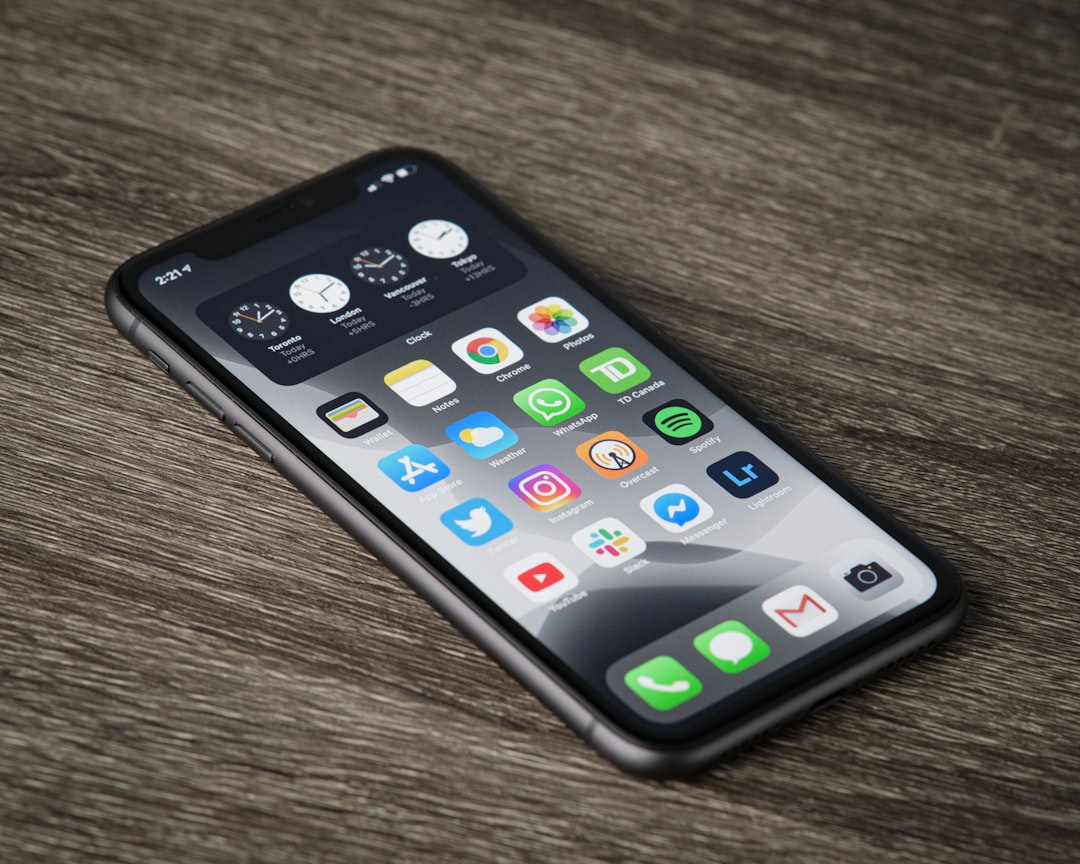
For apps you want to keep, go to Settings > General > iPhone Storage, tap the app and choose “Download App”. This option removes the app but keeps your data, saving space without losing information. You can reinstall the app later straight from the App Store and retrieve your saved settings and documents.
Browsers like Safari accumulate history, cookies and website data over time, taking up space progressively. Clear browser history and data in Settings > Safari > Clear History and Website Data. This action is reversible and does not seriously affect the operation, but helps to recover a few megabytes of free space.
Messaging apps like WhatsApp and Telegram also accumulate incoming media (photos, videos, documents) in their internal downloads folder. Open these apps, go to settings, and look for the storage or cache option. You can remove old media automatically or manually delete content you no longer need.
Uninstall unnecessary languages and features
If you don’t use certain languages on your iPhone, you can remove the installed language files to free up space. Go to Settings > General > iPhone Storage, search for “Language Files” or specific languages, and delete those you don’t need. This approach is less well known but can release 500 MB to 1 GB depending on how many languages are installed.
Accessibility features like Braille fonts, voice features, and alternative keyboards also take up space if installed but not used. If you don’t use these features, uninstall them in Settings > Accessibility or via the App Store. Removing unnecessary features is an iPhone memory-cleaning strategy that few users know about but works effectively.
Update iOS to the latest version
IOS updates often optimize space usage and improve overall system efficiency by indirectly freeing up space. Go to Settings > General > Software Update to check for a new version available. Install updates as soon as they are released, as they often include performance improvements that reduce iPhone memory consumption.
Older versions of iOS sometimes store redundant files or stale data that updates automatically remove. Additionally, new versions often receive optimizations that reduce the overall size of the operating system. Performing this update should be one of your first strategies for cleaning up iPhone memory.
Set up iCloud to sync only what you need
If you sync all your contacts, calendars, notes, and reminders with iCloud, that data takes up space on your iPhone even if you don’t access it often. Go to Settings > [Seu Nome] > iCloud and disable syncing features you don’t use daily. This keeps data in the cloud but removes local copies from your device.
You can, for example, sync important contacts and calendars but turn off syncing old notes or completed reminders. This selective approach keeps your iPhone light while preserving data in the cloud for when you need it. Reviewing these settings monthly helps you keep your iPhone memory optimized continuously.
Keep your data backed up before you clean up
Before performing any aggressive memory wipe, make sure your important data is backed up in iCloud or on a computer. Make a full backup in Settings > [Seu Nome] > iCloud > Backup from iCloud or Finder/iTunes on your computer. This backup protects your photos, contacts, messages and settings in case something goes wrong while cleaning.
If you already have iCloud+ active and automatic backup enabled, your data is already protected and you can proceed more safely. Even so, performing an additional manual backup before removing applications or deleting documents is a smart precaution.This small effort avoids losing valuable information during the iPhone memory cleaning process.
Monitor memory usage regularly
After cleaning up iPhone memory, make a habit of regularly checking available storage, ideally once a month. Go to Settings > General > iPhone Storage and review which apps have grown in size or if new documents have accumulated. This continuous monitoring prevents iPhone from getting full again and keeps its performance consistent.
Also use the automatic iPhone notification that alerts you when space gets low to intervene before the device starts running slowly. When you receive this notification, perform the cleaning strategies described in this guide proactively.This regular monitoring ensures that you keep your iPhone memory optimized without waiting for crashes or extreme slowness.
Real use cases in OteApp and practical scenarios
In productivity apps like OteApp, you can see how much space your projects, documents, and media are taking up. OteApp users often accumulate old versions of projects, reference images, and attached files that could be deleted after being synced to the cloud.When cleaning up iPhone memory, consider archiving completed projects in OteApp and removing their local copies, instantly freeing gigabytes.
A common real scenario is when you use OteApp to manage work notes with attached images and documents, accumulating hundreds of megabytes over months. When reviewing your iPhone storage, you identify that OteApp occupies 800 MB. The solution is to back up important notes in the cloud, clear the app cache and delete duplicate or old attachments, reducing the size to 200 MB. This process frees up 600 MB keeping your main data intact.
Another practical scenario occurs when you use OteApp simultaneously with photo apps like Lightroom or Photoshop Express, all competing for space on iPhone. In this context, cleaning iPhone memory becomes essential to maintain the performance of multiple heavy apps. You can remove completed OteApp projects, optimize photos in the Photos app for iCloud versions and uninstall editing apps you don’t use often, creating space for OteApp and its core apps to work smoothly.
Professionals working with OteApp to manage client tasks and projects often face the problem of full memory when syncing multiple media. Implementing iCloud Optimized Photos strategy while keeping OteApp running smoothly is a common real scenario. You sync your OteApp projects with iCloud, enable Optimized Photos for lower resolution versions of images, and remove old client apps, keeping your iPhone fast and responsive.
Students using OteApp for class notes often fill their iPhone with audio recordings, whiteboard photos, and PDF documents over the course of a semester. A practical use case is to review these notes monthly, delete old files from completed subjects, and back up important information to a storage service like Google Drive.This regular iPhone memory cleaning practice keeps your device agile while you study and work with OteApp.
Content creators who use iPhone as their primary tool for working with OteApp to organize ideas face unique memory challenges. They can accumulate video drafts, prototyping photos, and search documents that quickly take up gigabytes.The solution is to establish a workflow where you clean iPhone memory weekly, moving old files to a computer or cloud service.This routine keeps iPhone running at peak performance, essential for creators who need to capture inspiration quickly with OteApp.