How to Clean iPhone Memory Quickly
Announcements
The full memory of your iPhone compromises performance, reduces processing speed and affects the daily use experience. You have probably faced that annoying notification warning that space is insufficient, or noticed apps opening more slowly than normal. The good news is that there are practical and effective methods to free up space quickly without losing important data.
Announcements
Understanding how to organize and optimize the memory of your Apple device is critical to keep your iPhone running in perfect condition. Contrary to what many think, you do not need to restore the device or hire specialized technicians to solve this problem. With the right strategies and tools available in the operating system itself, you will be able to recover gigabytes of space in a few minutes.
Why iPhone Memory Gets Full Fast
Your iPhone accumulates data in many ways that you may not even realize. Installed apps take up space, photos and videos consume significant amount of memory, emails with attachments accumulate, and the operating system itself creates temporary files.In addition, applications often store cache and offline usage data to work better when connected to the internet.
Social media apps like Instagram, TikTok, and Snapchat are particularly problematic as they store high-resolution versions of images and videos you see. WhatsApp, Telegram, and iMessage also store complete conversation histories with embedded media.If you don’t manage these apps regularly, a single app can easily take up several gigabytes of your device.
The Safari browser also leaves its digital trail on the iPhone through browsing history, cookies, website caching and filled-in form data. Streaming music and video download temporary data for faster playback, and games often require content updates that take up a lot of space. Understanding these sources of memory consumption is the first step to effectively control them.
Check Storage Usage on Your iPhone
Before you start cleaning, you need to know exactly where space is being consumed. Go to Settings, tap General, and then tap iPhone Storage. Here you will see a clear preview of how much space each app is using, ordered from the largest to the smallest consumer. This report shows the size of the app and also the size of the data it stores separately.
Note which apps appear at the top of the consumption list, as these will be your first cleanup targets. The interface also shows how much space is being used by categories such as Photos and Camera, System and Documents and Data. Some users are surprised to find that the Documents and Data category takes up as much space as the installed apps, which reveals the amount of digital junk that accumulates without being noticed.
Delete Unnecessary Apps and Uninstall Old Versions
The most direct method to free up memory is to remove apps that you do not use regularly. Return to the Storage report and start with the list of least accessed apps. Tap on each one and you will see two buttons: Download and Remove. When you download an app, you keep your data and documents, allowing you to reinstall without losing settings, but free up the space that the app consumed.
Choose Download for apps you use occasionally, such as banking or travel apps you may need in the near future. For completely unnecessary apps, choose Remove to delete completely. You can reinstall any app for free after you change your mind.The iPhone also gives you the option to automatically remove apps you haven’t used in a long time, keeping your data intact while freeing up valuable space.
When uninstalling apps, pay special attention to heavy games like Call of Duty, Genshin Impact or other large titles that easily take up 2 to 4 gigabytes each. Professional video editing and photography apps are also significant consumers of space. If you do not use them regularly, removing them can free up substantial amount of memory immediately.
Clear Photos, Videos and Screenshots
Your iPhone probably contains hundreds or even thousands of photos and videos that you will never see again. Most people take multiple photos of the same scene, keep unnecessary screenshots, and accumulate videos that you do not watch.
Open the Photos app and use the multi-select function to batch delete.Specially look for old screenshots you saved for any reason, test videos or accidental recordings.You can filter by file type, date or even use the Duplicates folder that iOS offers to find multiple versions of the same photo. Consider backing up the important photos in the cloud before deleting, transferring them to iCloud or Google Photos.
If you take too many videos, analyze the resolution and frame rate you are using. Reducing from 4K 60fps to 1080p 30fps can save significantly during future filming, as well as make old videos take up less space when compressed. Remember that Live Photos also take up space as they store small videos along with static images.
Delete Emails and Clear Application Cache
Emails with attachments are silent memory accumulators, especially if you never clean the junk folder. Open the Mail app, navigate to each folder, and swipe left on old emails to bulk delete. Emails with embedded photos, PDF documents, or videos consume disproportionate amount of space, so prioritize those when deleting.
You can also force the Mail app to use less space in Setup by reducing the synchronized email retention period. In the Mail settings area, you can choose to sync only the last 1 month of emails, keeping older versions on the cloud server. This offers a good balance between accessibility and saving local space on the device.
To clear the cache of specific apps, return to Settings > General > iPhone Storage, select an app, and tap Download. This action deletes the app but keeps your data, freeing the cache. You can then reinstall the app right from the App Store. Alternatively, many apps have cleaning options within their own internal privacy and data settings.
Optimize ICloud Storage and Use Photo Library
ICloud offers a stylish solution to keep your photos accessible without taking up physical space on your iPhone. Enable iCloud Photography in Settings > Your Name > iCloud > Photos. Choose Optimize iPhone Storage so your device stores lower resolution versions locally while keeping originals in high quality in the cloud. You can still view any full resolution photo when you want, but your photos won’t take up precious space.
If you have a lot of videos, consider that iCloud Photos also syncs videos, so disable automatic video backup if you don’t have enough cloud space. You can keep only photos synced while storing videos locally selectively.Some users prefer to use alternative services like Google Photos or Dropbox for media backup, leaving more space in iCloud for system settings backups.
Another strategy is to use iCloud Shared Photo Library, which allows you to distribute photos among multiple family members without each keeping full copies locally.
Clear Safari Cache and Navigation Data
Safari accumulates cache, cookies and history that consume memory gradually over time. Go to Settings > Safari and locate the Clear History and Data option. Choose the desired period (last hour, last 24 hours, last week or all times) and confirm. If you are really running low on space, select all times for a thorough cleanup.
You can also enable the option to leave no history by selecting Privacy and choosing Do not retain history. This prevents Safari from storing any record of your browsing, although you lose the convenience of autocomplete and frequent site suggestions.An intermediate approach is to allow history only for a week, which offers useful suggestions without accumulating large amounts of old data.
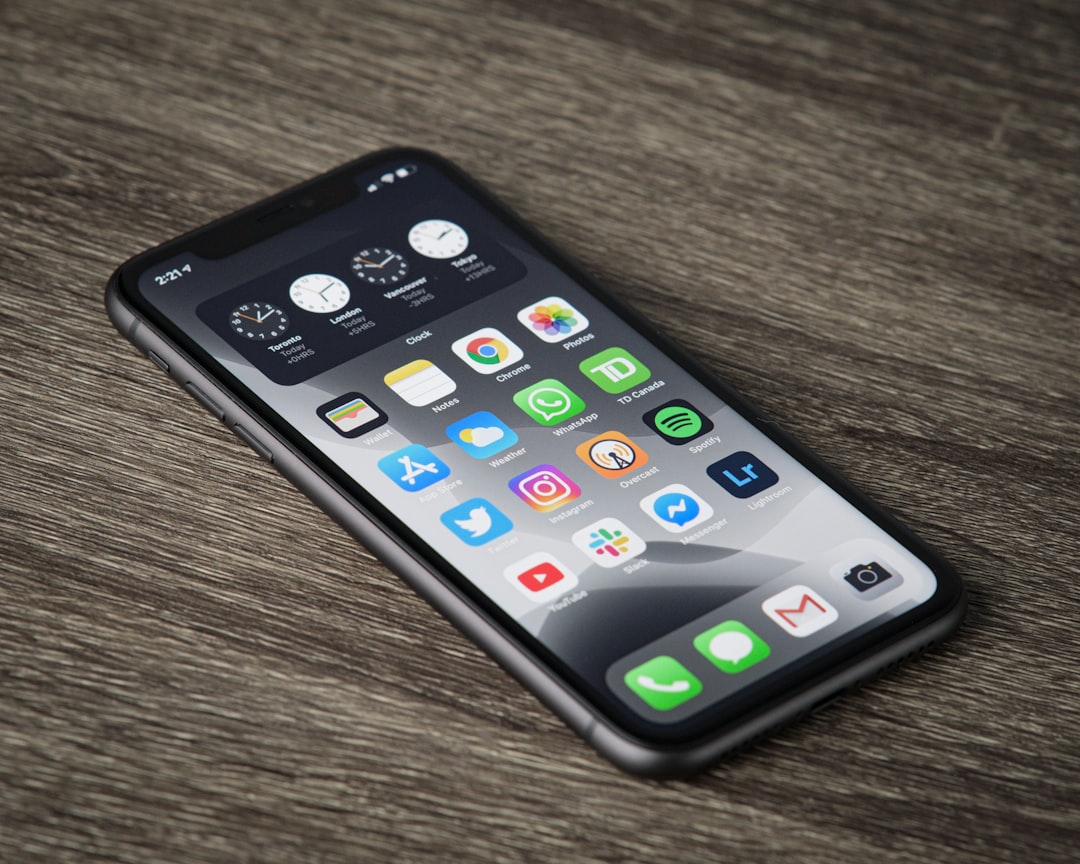
If you use other browsers like Chrome or Firefox on your iPhone, repeat the same process in your individual settings. These browsers also accumulate significant cache and history.Some users do not realize that each browser keeps its own separate cache, so it is important to clear all of them for a thorough cleanup.
Use Optimized Storage and Automatic Updates
IOS offers a feature called Auto Optimize that helps you manage storage without your intervention. Under Settings > General > iPhone Storage, you can enable the option that forces your iPhone to automatically free up space for unnecessary apps when memory is getting full. This feature is particularly useful if you frequently download large files or update apps.
Disable automatic app updates in Settings > App Store > Automatic Updates if you don’t have space available. Instead, manually update only the apps you actually use. Older apps accumulate updates that take up increasing space, so this practice prevents memory from filling up with old versions of apps during the update.
Also disable automatic downloading of low-quality high-resolution photos and videos to the cloud when connected to WiFi. Go to Settings > Your Name > iCloud > Photos and confirm that you are optimizing for iPhone storage instead of maintaining original quality locally.
Manage Accumulated Documents and Data
The Documents and Data category in the Storage report often contains tens of gigabytes of digital junk that you don’t even know exists.This data includes app caches, temporary files, offline files saved, and application data that you’ve already deleted. Finding and removing this junk requires addressing each app individually, as there is no centralized tool for cleaning.
For specific apps like WhatsApp, Telegram, or Instagram, go to their internal settings and look for Cache Cleanup or Media Management options. In WhatsApp, for example, you can go to Settings > Data & Storage > Manage Storage to see exactly how much space each conversation takes up and delete old media files automatically.
If you use cloud apps like Dropbox, Google Drive, or OneDrive, make sure you’re only syncing important files locally. These apps often try to keep copies of many files on your device for quick access, which ends up consuming absurd amounts of space. Change the settings to sync only selected folders or use the option to just access online without local downloads.
Comparing Solutions: Cleaning Apps vs Native iOS Methods
You may be considering downloading a specific app for iPhone memory wipe, but the reality is that native iOS methods are often more effective.Apple’s own operating system offers all the necessary tools without the need for third-party apps, which can ironically consume more space than they save.Wipe apps also often ask for unnecessary permissions and collect data that you may prefer to keep private.
Comparing the approaches, manual cleaning through the iPhone Storage menu gives you more control and transparency over what data you are removing. You know exactly where each gigabyte is being released, unlike apps that promise miraculous results without clearly showing what they are doing. The advantage of native methods is that there is no risk of deleting something important accidentally, as you control each action.
If you really want to use third-party tools, consider trusted platforms that focus on specific management like cloud backup apps. Generic cleaning tools often use questionable techniques and can undermine iOS stability.The best approach is to combine regular native methods with good digital management practices, eliminating the need for additional apps altogether.
Long Term Maintenance Strategies
After freeing up significant space, the challenge becomes to keep your iPhone clean continuously. Establish a monthly routine where you review the Storage report and delete unused apps, empty the photo trash and clear the cache of browsers. Dedicating 10 minutes once a month is much easier than letting the memory get completely full and need to spend hours cleaning.
Implement the practice of deleting screenshots and test videos right after using them, rather than leaving it for later. If you take multiple photos of the same scene, take a minute to keep only the best ones and delete the extras immediately. These small and frequent actions prevent the build-up that eventually wastes gigas of valuable memory.
Consider setting a cap on the number of installed apps you really need. Many users tend to try new apps continuously without deleting old ones, leading to unnecessary installations. Keep as many apps as you use most days while maintaining a balance between variety and storage efficiency.
Periodically review your sync settings for iCloud, email, and other cloud services. Reducing the retention period for synced emails from six months to a month, for example, can release gigabytes continuously. Disabling synchronization of certain types of data that you don’t frequently access also contributes to efficient long-term maintenance.
The Role of iOS Update in Memory Cleanup
Interestingly, upgrading to the latest version of iOS may actually free up space by the consolidation and optimization process that Apple automatically performs during the update.Duplicated files are removed, the file system is rearranged, and obsolete drivers are eliminated. If your iPhone is running an older version of iOS, considering the update may be a form of structural cleanup that cannot be achieved manually.
During the upgrade process, iOS creates a temporary copy of all your data to ensure nothing is lost during the transition. This means you need free space available to upgrade. If your iPhone is too full, you may need to clear space first before upgrading to the latest version. Plan for updates after a cleanup session to ensure the process runs smoothly.
Some iOS updates also bring new storage management features that the previous operating system did not offer. Upgrading can give you access to better tools to monitor and control memory consumption in real time. It is worth checking the release notes of new versions of iOS to see if they include improvements in storage management.
Solutions When Space Is Completely Saturated
If you are in an emergency situation where your iPhone is so full that you can’t even install critical security updates, you may be forced to take more drastic measures. First, try to delete only the largest sources of memory consumption: large apps, old videos and duplicate documents. Often this frees up enough space to continue operating normally without having to restore the device.
If even aggressive cleaning does not work, you can choose to restore your iPhone through iCloud or computer. Before you do that, make sure you have a full and up-to-date backup.Restore effectively restarts your iPhone by deleting everything and reinstalling iOS from scratch. All your data will be restored from the backup, but you can choose not to restore certain apps or data that take up a lot of space, offering a chance to start new with more conscious management.
Another option is to simply not restore certain data after aggressive cleaning. Instead of restoring hundreds of gigs of old backup data, you can restore only the essentials and let apps and data gradually sync from the cloud as needed. This approach offers a chance to start from scratch with more space-conscious management from the start.