How to Clean iPhone Memory in 5 Steps
Announcements
Your iPhone is getting slower and slower and you don’t know why? Device memory may be saturated with unnecessary files, caches and resource-consuming applications constantly.In this handy guide, you will learn advanced strategies to free up space and optimize your iPhone’s performance efficiently and lastingly.
Announcements
Many users believe that just deleting applications solves the problem, but the reality is much more complex. There are invisible layers of data accumulated on your device that continue to occupy space even after uninstalling an app. Understanding these different sources of memory consumption is critical to perform a genuinely effective cleaning.
Step 1: Identify the Guilty with Detailed Analysis
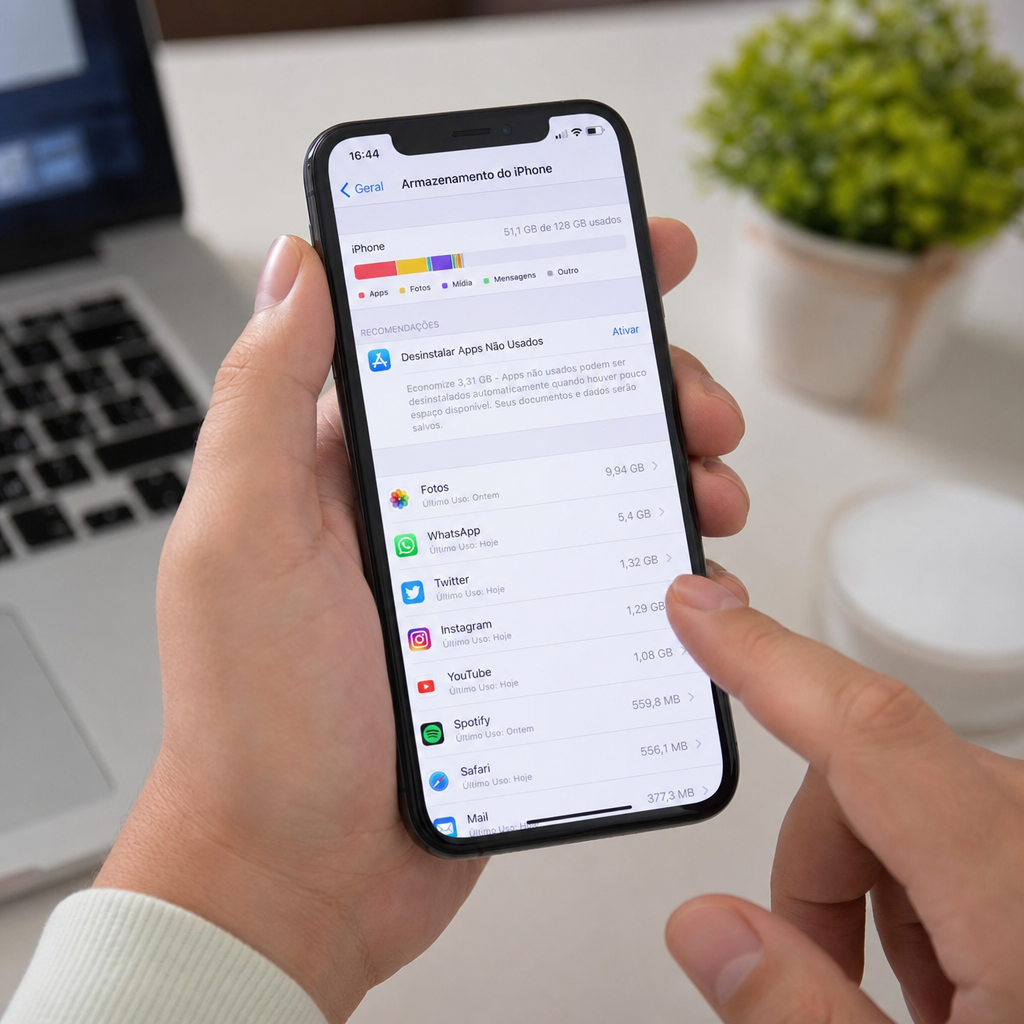
Before you start any cleaning, you need to know exactly where the problem is. On iOS, go to Settings, tap General, and then tap iPhone Storage to view a full list of apps organized by size. This view shows not only the size of the app itself, but also data stored as cache, documents, and associated libraries. This is the essential first step to an efficient optimization strategy.
For example, a photo app may only have 50 MB of installation, but accumulate gigabytes of cached and temporary data. Write down apps that consume more than 500 MB, as these will be your priority targets.Detailed analysis allows you to focus your efforts where it really matters, saving time and maximizing the cleaning result.
Step 2: Use Smart Offload Strategy
The iPhone offers a feature called Download App that many users completely ignore. This function removes the app keeping your data intact, allowing you to reinstall it later without losing information. To enable this strategy, go to Settings, General, iPhone Storage, select the desired app and tap Download App. This method works perfectly for applications that you use occasionally but that take up a lot of space.
The advantage of this approach over conventional deletion is huge. You reclaim the space of the original app, but when you reinstall, your data, preferences, and settings remain saved. This is especially useful for heavy gaming, video editing apps, and social media that cache quickly.Set Up Download Unused Apps option to automate this process, saving time and memory continuously.
Step 3: Manage Photos and Videos with Storage Optimization
Photos and videos consume huge amount of memory, especially on iPhones with high resolution cameras. Enable Optimize Storage option in Settings, Photos, by accessing iCloud Photos settings. When this function is active, lower resolution versions of photos are stored locally while the original high quality remain only in iCloud. You can still view all images normally, but it frees up valuable space on the device.
Also, review your library regularly and delete duplicates, blurry photos, and long videos that you no longer use. The Photos app has a Recently Deleted album that retains images for 30 days before permanently deleting, allowing recovery if you change your mind. This media optimization strategy is one of the most effective for recovering gigabytes of space without affecting the functionality of your iPhone.
Step 4: Clear Caches and Data from Specific Apps
Each app you use creates cache, history, and temporary data that progressively accumulates. Unlike Android, iOS does not offer a global button to clear cache, so you must manage this app by app. For apps like browsers, social networks, and video streamers, go to settings within the app itself and look for options like Clear Data, Clear Cache, or Clear History. Browsers like Safari let you clear history, site data, and cookies in iPhone Settings, which removes accumulated cache.
An advanced strategy is to log out of unnecessary accounts within apps, as iPhone often stores session and sync data that takes up space. For apps you never use again, the best option is to delete completely instead of just clearing cache, ensuring no residual data remains on the device. Repeat this process monthly to keep the cache under control.
Step 5: Optimize Sync Settings and Backups
ICloud continuously syncs email data, contacts, calendar, reminders, and documents, creating local copies that take up memory. Go to Settings, your name (Apple ID), iCloud, and select which apps should sync data. Disable syncing for apps you don’t use often, immediately reducing local storage consumption. Apps like Mail consume a lot of memory by keeping copies of downloaded emails locally, so consider reducing the sync period or deleting old emails.
Also check the size of your iCloud backup under Settings, your name, iCloud, Manage Account Storage.Old backups take up space in the cloud and sometimes contain data from apps you have already removed.Delete unnecessary backups and disable automatic synchronization of apps that do not need to be restored in case of recovery. Limiting this synced data is a less obvious but extremely effective strategy for maintaining consistent performance.
Advanced Continuous Optimization Strategies
After completing the five main steps, you can implement advanced strategies to keep your iPhone optimized permanently. One of them is to enable Low Power Mode not only when the battery is low, but as a regular practice, as it reduces background activities that generate cache and temporary data. You can also schedule regular device restarts, which clean RAM and temporary operating system caches.
Implement a monthly preventive maintenance schedule, reviewing installed apps and deleting those that are no longer used. Disable automatic syncing for heavy apps like Google Drive, Dropbox, and OneDrive if you don’t access them regularly.Constantly monitor storage using the native iOS dashboard, creating a weekly scanning habit that identifies issues before they become critical.
Another advanced strategy is to disable the Photos option in iCloud if you use other backup services like Google Photos or Amazon Photos.This eliminates duplicate synchronization that consumes memory. Also configure the App Library settings to hide home screen pages that you do not use, reducing UI processing and resource consumption. These combined invisible optimizations create a significant cumulative impact on overall performance.
For power users, consider using performance testing tools to monitor how much memory each app consumes in real time. Some services in the App Store provide detailed analysis of battery and memory consumption per app, allowing you to identify culprits who run unnecessary processes in the background.
Long-Term Maintenance and Prevention
After cleaning your memory, the real challenge is to keep it clean. Establish personal rules like deleting useless photos every week, reviewing installed apps monthly, and performing preventive maintenance every quarter.This disciplined approach prevents the problem from returning and keeps your iPhone responsive. Many users experience gradual performance degradation because they neglect continuous maintenance, so this habit is more important than any punctual cleaning.
Set up automatic notifications when your storage reaches 80% capacity, alerting you that a cleanup is required. iOS can send these notifications if you enable them in Storage Settings. Also use the Storage Recommendations function that iOS automatically displays, following your suggestions to delete photos in copy in iCloud or remove unused apps. This automatic warning system acts as a second line of defense against excessive data accumulation.
Finally, whenever you upgrade to a new version of iOS, perform a thorough cleanup before the upgrade, as the process requires significant temporary space. After the upgrade, review incompatible apps and delete anything that does not work properly in the new version. This maintenance ritual associated with software updates prevents issues related to obsolete or incompatible data that sometimes accumulate during version transitions.