How to Customize Cell Phone Battery Icon
Announcements
Customizing your phone’s battery icon is a simple and effective way to make the device interface more aligned with your personal style.You can change from the color to the shape of the charge indicator, transforming a functional element into a visual detail that reflects your digital identity.
Announcements
The customization of the battery icon may seem like a minor detail, but it directly impacts the daily visual experience of your device. In addition to improving aesthetics, many users use this practice to improve readability or facilitate the monitoring of the level of charge in different scenarios of use.
Why Customize Battery Icon
Customizing visual elements of the phone goes far beyond vanity. When you change the battery icon, you can create a more immersive and personalized experience that matches the theme of your device, whether it is minimalist, colorful or thematic. This practice allows your interface to reflect your personality and aesthetic preferences.
Changing the battery icon also makes it easier to see the power status of the device in different contexts. Some users prefer more prominent icons so that they do not lose sight of the remaining charge, while others opt for more subtle designs integrated into the status bar. Regardless of the choice, customization gives you full control over how you want to view this important information.
Native Methods for Android
On Android, you have several ways to customize the battery icon without the need for complex applications. Most modern smartphones offer native options within the system settings, allowing you to adjust colors, styles and animations of the charge indicator. These options are usually located in Settings > Display > Advanced or in Customizers sections.
Many devices Samsung, Xiaomi and other manufacturers include themes that completely modify the look of the status bar, including the battery icon. You can access these features through the Theme Manager or Theme Store of your manufacturer, where you find ready-made options created by professional designers. This approach is safe, simple and does not compromise the integrity of the system.
The advantage of native methods is that you do not have to use special permissions or security bypass.The operating system recognizes the change as a legitimate customization, keeping your device stable and secure.In addition, future Android updates will not affect your customizations, as they are integrated at the device theme level.
Options with Specialized Applications
If the native options do not meet your expectations, there are third-party applications that offer much more freedom and creativity in customizing the battery icon. These applications allow you to choose from thousands of different designs, create custom icons or even import your own images to represent the battery status.
Applications like OteApp and similar work as interface managers that intercept and modify the display of the battery icon visually. They offer massive libraries of icons, different animation styles and the possibility to synchronize the battery design with other visual elements of your theme. By using these applications, you gain granular control over each aspect of the appearance of the load indicator.
The installation is straightforward: you download the application from the Play Store, choose the desired icon or create a customisation of your own, activate the necessary permissions and apply the change. Some applications request access to accessibility, which allows them to work more efficiently. It is important to review the requested permissions and choose only applications from trusted developers with good ratings.
Customization on Apple Devices
IPhones offer greater limitations compared to Android devices when it comes to native visual customization. Apple maintains tight control over the system interface, which means you can’t change the battery icon through default settings.
One of the most commonly used ways is to create custom shortcuts through the Shortcuts app that comes with iOS. You can set up custom widgets that display battery status differently by placing them on the home screen or on the locked screen. This approach does not change the native icon in the status bar, but offers an alternative and creative view of your device’s charge level.
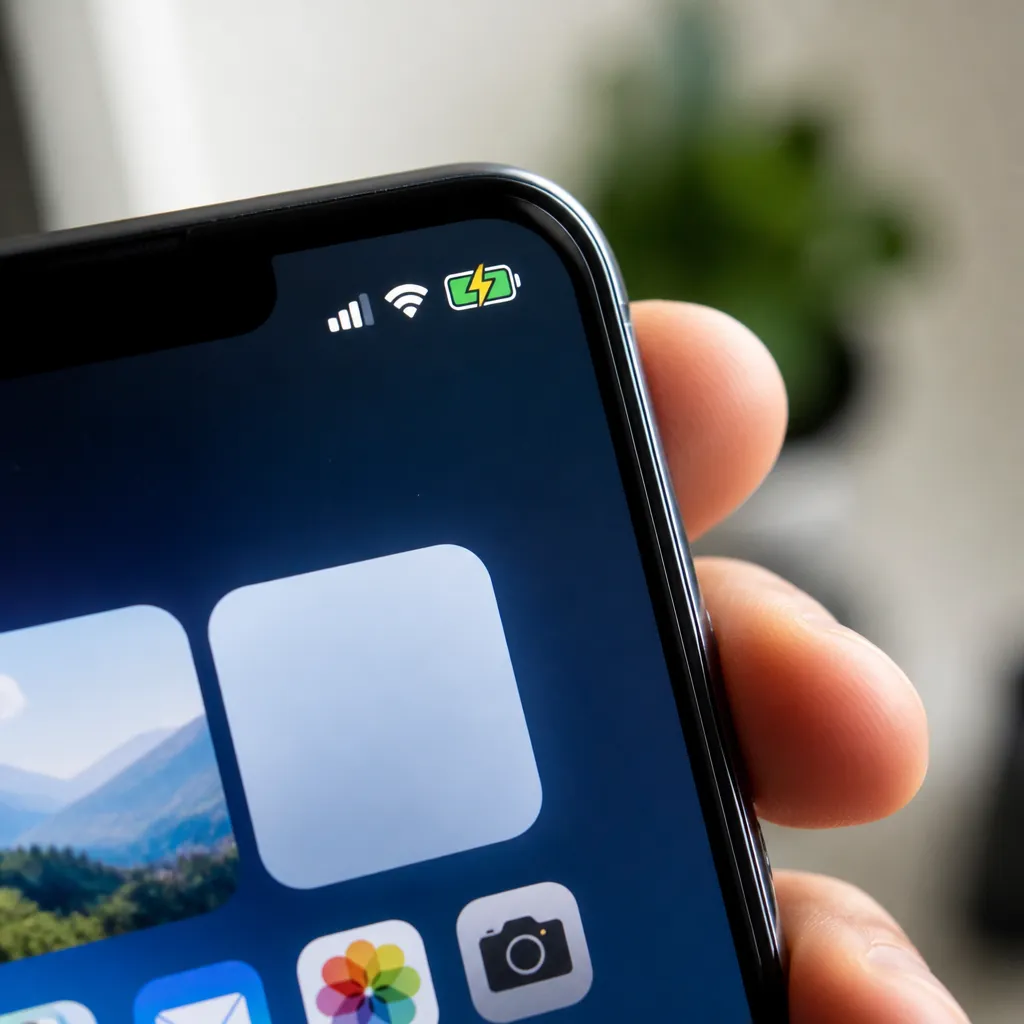
Another option is to use third-party app themes that work within the app itself, changing how that specific app displays battery information. While this does not customize the overall iOS indicator, it offers a consistent visual experience within popular apps.The restricted iOS ecosystem prioritizes stability and security over freedom of customization.
Practical Tips for Better Results
When customizing the battery icon, consider contrasting with the background of your status bar. An icon with colors very similar to the background can become difficult to view, especially in direct sunlight or in bright environments. Test different color combinations before permanently applying customization to your device.
Harmonize the design of the battery icon with the rest of its visual interface. If you use a minimalist theme, choose a simple and clean icon.If you prefer a more colorful and thematic approach, look for designs that complement this style. The visual cohesion between all the elements of your status bar creates a more professional and pleasant experience when looking.
Be aware of resource consumption when using third-party applications for customization. Some of them perform continuous processing to monitor and change the icon in real time, which can impact the battery of your device. Choose optimized applications and, if you notice a significant decrease in autonomy after installing a customizer, consider using the native options of your device.
Backup of your custom settings is a best practice, especially if you have invested time creating your own designs.Many apps offer configuration export or cloud synchronization, allowing you to easily restore your customizations in case of device reset or migration to a new device.
Comparison: Native Methods vs. Applications
The native methods of your device offer security, stability and seamless integration with the operating system. You do not have to rely on third-party developers, you do not face risks of incompatibility with future updates and does not consume additional processing resources. This approach is ideal if you are looking for something simple, fast and hassle-free.
Specialized apps, on the other hand, provide vastly more creative options and granular control over customization. You access libraries with thousands of designs, can create completely custom icons, and synchronize the battery with other visual elements in a coordinated way.The downside is that they rely on extra permissions, can consume more battery, and require developer confidence.
If you want something simple and reliable, the manufacturer’s native themes are enough. If you want to explore visual creativity without limits and are willing to manage permissions and resource consumption, specialized applications are worth the investigation. Both approaches are valid and work well when you choose tools of quality and proven reputation.
Troubleshooting and Common Problems
If your battery icon customization disappears after a system update, don’t worry. This is common when operating systems receive larger updates. The solution is simple: access the settings again, reapply the theme or re-enable the customizing application. In most cases, your preferences will be saved and will be reapplied automatically.
Conflicts between multiple customizing applications can cause strange behavior in the status bar. If you have installed several apps of this nature, it is recommended to disable or uninstall the ones you are not using. Leave only the main customizer you have chosen active, ensuring that there is no competition of features or overlapping of features.
Some devices require developer mode activation or specific accessibility permissions for customizers to work properly. If customization is not being applied, make sure the app has all the necessary permissions active in your device’s privacy settings.