Discover moves on Facebook
Announcements
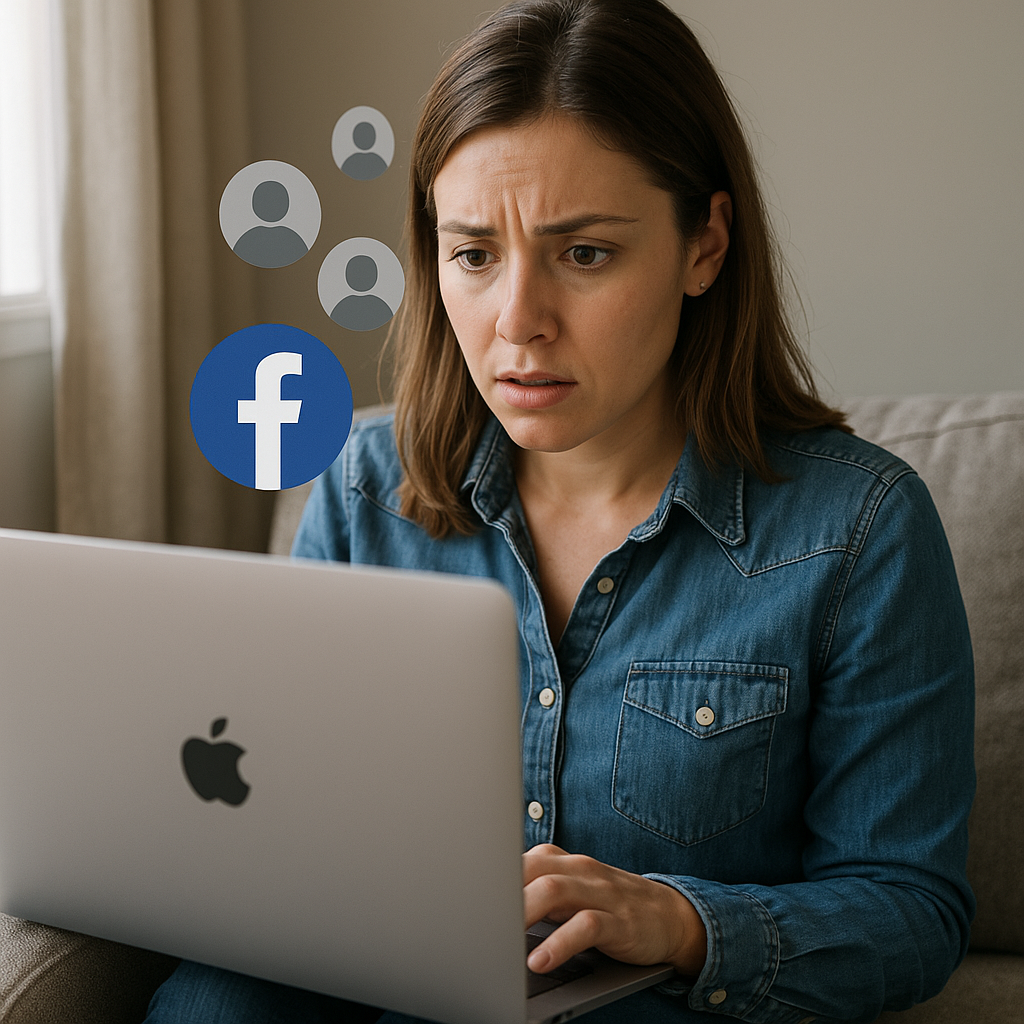
Have you ever felt uncomfortable with the idea that someone might be accessing your Facebook account without your permission?It is a valid concern considering the amount of personal information we share online.
Announcements
The feeling of vulnerability can be distressing. Fortunately, there are ways to monitor access to your account and protect your account security online.
By understanding how to check activities on your profile and taking steps to safeguard your information, you can have more control over your digital presence.
Main Conclusions
- Regularly check login activities on your account.
- Enable two-factor authentication for added security.
- Monitor the privacy settings of your profile.
- Be alert for signs of unauthorized access.
- Use parental control tools to protect family members.
Understanding the importance of monitoring activities on Facebook
Monitoring Facebook activity is crucial to maintaining your security online. With the increasing reliance on social media, it is critical to be aware of the activities associated with your account.
Why it is necessary to verify accesses to your account
Regularly checking accesses to your Facebook account allows you to quickly identify any suspicious activity and take immediate action to protect your account privacy. This is essential to prevent malicious people from accessing your profile and personal information.
Security risks on shared devices
When you share devices with others, such as public or family computers, you increase the risk of unauthorized access to your computer account shared devices can save passwords and keep sessions open, allowing other users to access your profile without your permission.
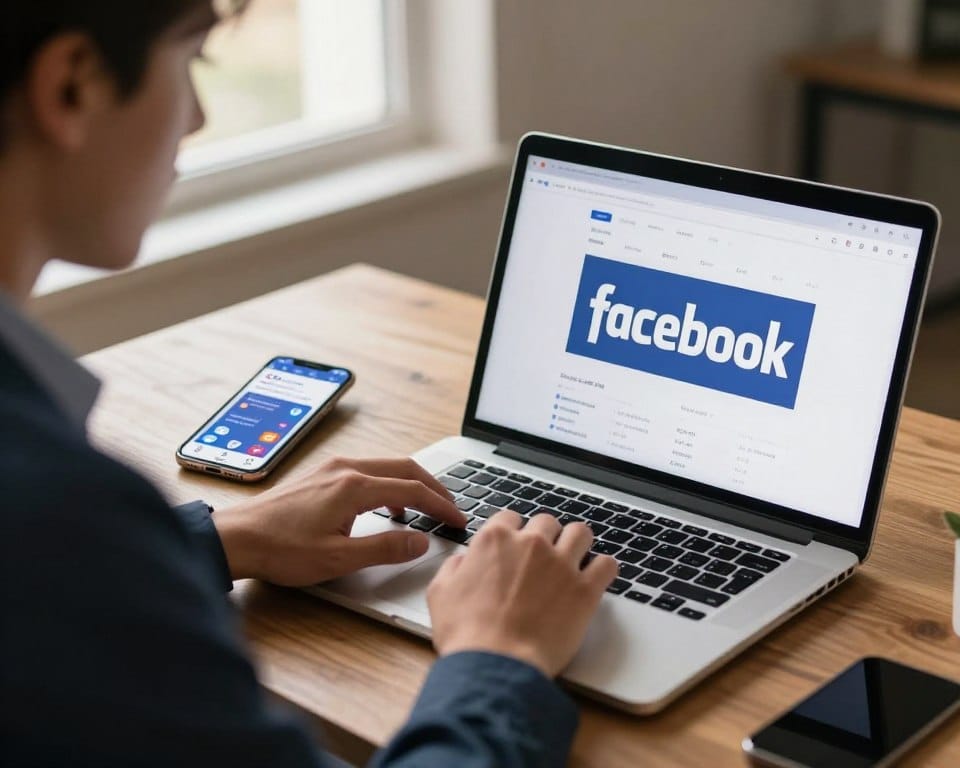
By understanding these risks and monitoring activities on Facebook, you can take proactive steps to protect your information and keep your account safe.
How to check if someone has accessed your Facebook
Finding out if someone has accessed your Facebook without authorization is easier than you think. To check the accesses to your account, you need to access the security and login settings.
Accessing security and login settings
To get started, go to your Facebook profile settings and click on the “Security and login” option on the left side of the screen. Here, you will find several security settings that can be adjusted to protect your account.
Identifying devices and access locations
Locate the “Where you connected” option and click “View More”. A window will open showing all devices that accessed your account, including date, time, location, and type of device used.
Interpreting login information
By analyzing the access list, you can identify suspicious activity, such as logins from unknown locations or devices that you do not recognize. It is important to interpret this information correctly to take appropriate security measures.
Discover Facebook movements through activity history
Facebook activity logging allows you to view all actions performed on your account. This includes posts, comments, likes, and even searches.By checking activity history, you can identify if someone is accessing your account improperly.
How to access the full activity log
To access the full activity log, you need to navigate to Facebook’s privacy settings and look for the option “Activity Log” or “Activity History”. There, you will find detailed information about each action performed on your profile.
Identifying suspicious activity
When reviewing activity history, pay special attention to actions you do not recognize, such as messages sent, friend requests, or changes to account settings.Suspicious activities may include posts you did not make or interactions with unknown people.
How to close unrecognized sessions
If you have identified unauthorized access to your account, it is crucial to take immediate action to protect your account securityfacebook offers options to end these sessions.
Closing individual sessions
To end an individual session, locate the suspicious device on the list of active sessions. Click the button with three dots next to it and select “Session Close”. This is useful if you identify a specific device that you do not recognize.
Exiting all sessions simultaneously
If you identify multiple suspicious accesses, use the “Exit all sessions” option, this will disconnect your account from all devices except the one you are using. Remember that you will need to log back in to all your devices and apps, including cellphone and browsers.
After you end unrecognized sessions, it is recommended that you change your password immediately to prevent your person who had access can re-enter your account. This reinforces the security of your settings of account.
Setting up unrecognized login alerts
Login alerts are an essential tool to keep your Facebook account safe.By setting up these alerts, you will be notified immediately when someone accesses your account, allowing you to take quick action in case of suspicious activity.
How to enable login notifications
To enable login notifications, you need to access Facebook security settings. Scroll to ‘Extra security settings’ and edit the ‘Receive alerts about unrecognized logins’ option.
Customizing alert methods
Facebook offers several options for receiving login alerts, including in-app notifications, emails, and text messages.You can choose the method that best suits your routine, ensuring that you see notifications in a timely manner.
Implementing two-factor authentication
Securing your Facebook account is crucial, and one of the most effective ways to do this is by implementing two-factor authentication.This feature adds an extra layer of security beyond the password, making it harder for attackers to access your account.
Different authentication methods available
Facebook offers several two-factor authentication methods.You can choose between an authentication application, a physical security key or receive codes by SMS. Each method has its advantages and can be chosen based on your preferences and security needs.
Step by step to enable two-step verification
To enable two-factor authentication, go to the ‘Security and login’ section in your account settings. Scroll to ‘Two-factor authentication’, select ‘Edit’ and choose the desired authentication method. Follow the instructions to configure the chosen method, be it an authentication application, security key or text message. By doing so, you will be protecting your personal information, photos and profile more effectively, ensuring your privacy.
Monitoring activity outside of Facebook
This is done through the “Activity outside of Facebook” feature, which allows you to see which companies and websites share your browsing data with Facebook.
How to access the “Activity outside Facebook” panel
To access this panel, you need to follow a few simple steps cellphone, open the Facebook app, tap the menu from three bars ☰, go to “Settings and privacy”, and locate the option “Activity outside Facebook”. browser, you can access directly by the link or follow the steps: click on the “down arrow” in the upper right corner, go to “Settings”, and in the left menu, click on “Your Facebook information”.
Managing data shared by partner companies
By accessing the “Activity outside of Facebook” panel, you can see one list detailed websites and apps they shared information about your activities. This includes purchases, searches and pages visited. Monitoring this activity is crucial to understanding how your information are collected and used, allowing greater control over your privacy online. You can manage this data by disconnecting specific activities or completely disabling activity history outside of Facebook.
Protecting family members with parental control features
Protecting family members on social media is a priority for many parents and guardians.Facebook offers a variety of tools to help monitor and restrict access to inappropriate content, ensuring a safer experience for everyone.
By using these features, you can track usage time, pages visited and interactions performed by young people on the platform.
Tools available for family monitoring
To configure these tools, go to the menu from settings and look for options related to “Parental Supervision” or “Family Controls”. Monitoring tools allow you to track the activities of your family members and get information valuable about their online behavior.
Configuring content restrictions
You can set content restrictions for family profiles, limiting access to posts with sensitive or inappropriate themes for certain age groups. This helps create a safer and more appropriate environment for each person.
Additional tips to increase the security of your account
In addition to the security measures already discussed, there are other important tips for protecting your Facebook account. These additional recommendations can be found in the Security and login tab of the settings.
Changing passwords regularly
Changing your passwords regularly is a fundamental digital security practice.It is recommended to do this every three months or immediately after suspecting any unauthorized access.Use strong and unique passwords, combining upper and lower case letters, numbers and special characters.
Reviewing permissions of connected apps
Periodically review the permissions granted to apps connected to your Facebook. Set up security questions that are hard to guess from another personavoiding obvious answers or information publics.
By following these tips, You can significantly increase the security of your account. Click the button settings to start implementing these recommendations.
Conclusion
By implementing the security strategies discussed, you protect your information personal and reduces the risk of unauthorized access to your Facebook account. Monitoring activities and using parental control helps protect you and your loved ones. Remember, online security is an ongoing process that requires constant attention to maintain a safe digital environment for everyone.