How to Clean iPhone Memory Quickly
Announcements
When your iPhone starts to slow down, the fault is usually full memory.Learning to wipe iPhone memory is essential to keep the device running quickly and efficiently.
Announcements
In this complete guide, you will discover practical and proven techniques to free up space on your iPhone, from simple methods to advanced strategies that really work.We will teach you exactly how to do this without losing important data and without unnecessary complications.
Why your iPhone memory is full
Before you learn how to clean iPhone memory, it is important to understand why this happens. Your device accumulates data from various sources: installed applications, photos and videos, cache files, emails with attachments, and browsing history.Over time, all these files come together and consume the available space on your phone.
The iPhone memory works like a cabinet: the more things you put in, the less space left over. When that memory gets almost full, the operating system starts working slower because it has difficulty managing all the data. You may notice that apps take longer to open, the camera hangs or even the iPhone freezes at critical times.
Also, iOS reserves a portion of memory for its own operations.If you use almost all the capacity of your device, the system can not perform basic tasks correctly.So, maintaining a reserve of free space is critical to ensure that your iPhone works perfectly.
Check how much space your iPhone is using
The first step to cleaning iPhone memory is to know exactly how much space you are using. You can find out this in a few seconds by accessing your device settings. Go to Settings, then tap General and select iPhone Storage.
On this screen, you’ll see a color chart showing exactly how much space each data type is taking up. iOS groups the data into categories like Photos and Camera, Apps, Media, Emails, and others. This view helps you identify which categories are consuming the most space and where you can save.
Below the chart, you will find a list of apps organized by size. This information is pure gold to know where to start cleaning.If a social networking app is occupying several gigabytes, you already know you need to deal with it first.
Uninstall applications that you do not use
Uninstalling apps is one of the most effective ways to clean iPhone memory. Many users have installed apps for years that they never use again but continue to take up valuable space. Go back to the Storage screen you previously accessed and start reviewing the apps listed.
To remove an app, tap it in the iPhone Storage list and select the Uninstall App option. Confirm the action and the app will be removed from your device. An important tip: if you just hide the app without uninstalling it, it will continue to consume space, so make sure it is actually uninstalling.
Prioritize removing large apps that you don’t use regularly. Games are often the biggest consumers of space, followed by social networking apps and streaming services.If you really need one of these apps, you can always reinstall it later through the App Store.
Clear old photos and videos
Photos and videos are often the biggest villains when you need to clean up iPhone memory. The modern camera of iPhones generates ever larger files, and many users do not organize these media regularly. Go to the Photos app and review their galleries, starting with the older albums.
You can delete photos individually by tapping them and selecting the trash icon, or use multiple selection by tapping Select and then tapping on multiple photos at once. Prioritize removing blurry, duplicate photos or those you took by accident.
A smart strategy is to back up important photos in the cloud using iCloud, Google Photos or Dropbox before deleting them from iPhone. This way, you free up space on the device keeping your files safe on the internet. After backing up, you can delete these photos without worry.
Don’t forget the videos too. A single 4K video can easily take up several gigabytes. Review your old videos and remove those that you no longer watch or that you can recover later if necessary.
Use the Optimize Photo Storage feature
IPhone offers an automatic tool called Optimize Photo Storage that can significantly help clean iPhone memory. This function stores optimized and compressed versions of your photos on the device while keeping the originals in high quality in iCloud.
To turn this feature on, go to Settings, tap Photos, and turn on Optimize iPhone Storage. From that moment, the system will replace the large high-resolution photos with smaller optimized versions. If you want to see the original photo again, you can simply tap it and your iPhone will download the full version of iCloud.
This method is excellent because you do not lose your photos: they remain accessible in the cloud. Only the compressed copies will remain on your iPhone, saving gigabytes of space.Many users turn on this feature and immediately release several gigabytes.
Clear cache and application data
Apps store temporary data called cache to load faster the next time you use them. Over time, this cache can grow a lot and take up considerable space on your iPhone. Fortunately, cleaning up iPhone memory including this data is simple.
Go to Settings, then General, and tap iPhone Storage again. Look for specific apps you use frequently, such as browsers or social networks. Tap the app and select Download App. This removes the app but keeps your data, freeing up the space occupied by the cache.
You can also reinstall the app later by tapping the download icon. This action removes all the accumulated cache but keeps your settings and important app data.It is an effective way to clean memory without losing functionality.
For some applications like browsers, you can also clear the cache manually. In Safari, for example, go to Settings, tap Safari, and then select Clear Website History and Data. This removes cookies, history, and accumulated cache data.
Manage emails and attachments
If you access email frequently on iPhone, this data may take up more space than you think.Each email with photo or document attached contributes to memory consumption.To clean iPhone memory, it is important to review your mailboxes regularly.
Open the Mail app and look for folders that accumulate old emails. You can delete bulk emails by tapping Edit, selecting multiple emails, and tap Download. Prioritize removing emails with large attachments or newsletters that you no longer read.
If you use email services like Gmail or Outlook, you can access the app and uninstall the local app, keeping only access through the browser. This frees up space because you do not store copies of emails on your iPhone, only accessing when needed in the cloud.
Delete old messages in iMessage and WhatsApp
Messaging apps store photos, videos, and documents sent and received. With years of conversations, these apps can consume several gigabytes.To clean iPhone memory effectively, you need to review your conversations and remove old media.
In iMessage, open the Messages app, find old conversations, and tap Edit. Select conversations, then tap Download to remove them. In WhatsApp, open the conversation, tap More Options at the top, and then select Clear Chat or Delete Chat.
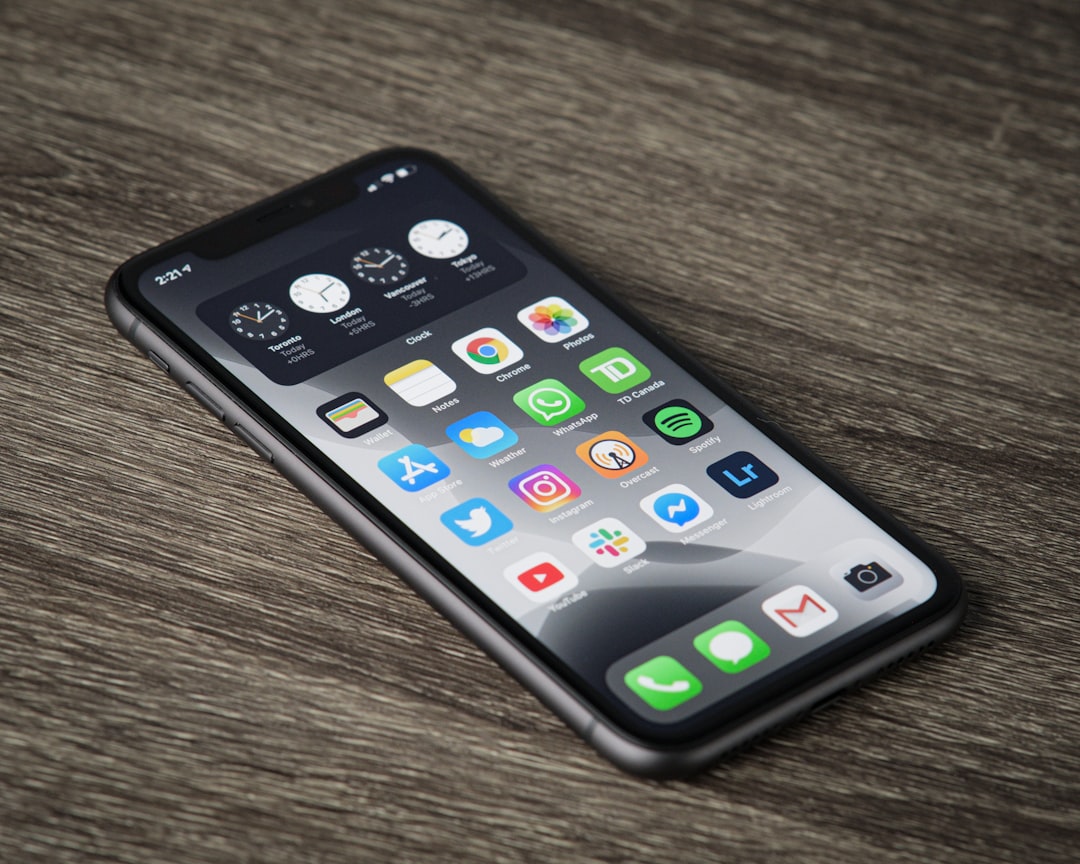
You can also set WhatsApp to automatically delete media from your camera roll after they are saved. Go to Settings, tap Storage, and select the appropriate option. This prevents automatically saved photos from continuing to take up space indefinitely.
Clear Safari browser
Safari stores browsing history, cookies, and data from websites you visit. When you wipe iPhone memory, including the browser is important because this data accumulates quickly.
Go to Settings, tap Safari and look for the Clear Website History and Data option. Tap it and Safari will remove all browsing history, cookies, form data and cache.
If you don’t want to lose history but only want to clear cookies and data, some versions of iOS offer more specific options. Explore Safari settings to find the one that best suits your needs.
Use iCloud Photos strategically
ICloud Photos is a powerful tool to clean iPhone memory while keeping your photos safe.If you have an iCloud plan, you can automatically sync your photos to the cloud and keep only optimized versions on the device.
Turn on iCloud Photos in Settings by tapping on your username, then iCloud, and then selecting Photos.Make sure you’re using iPhone optimized storage instead of downloading and keeping all originals.
If you don’t have enough space in iCloud, consider expanding your storage plan.A 50GB plan will cost you little per month and can save you a lot of time and frustration when dealing with limited iPhone memory.
Restart iPhone to free up RAM
While storage memory is the permanent space where your data lives, RAM is the temporary space that iPhone uses to run applications.When you wipe iPhone memory including RAM, the device works faster.
To restart, hold down the volume button more or less along with the side button until you see the slider turn off. Swipe to turn off, wait a few seconds, and then turn on again. This closes all open apps and frees up all RAM, giving the iPhone a fresh start.
You can do this weekly as preventative maintenance.Many users notice an immediate improvement in speed and responsiveness after a simple restart.
Manage music and video streaming apps
Apps like Spotify, Netflix, YouTube Music, and Disney+ store caches of videos and music, especially if you downloaded content to watch offline.To clean iPhone memory, you should review these apps specifically.
Open each streaming app, look in the settings for the option to manage downloads or cache. Most allow you to see exactly how much space is being used and allow you to delete downloaded content.
If you still enjoy watching offline, consider downloading only when needed instead of storing permanently. This approach maintains flexibility while freeing up valuable space on your iPhone.
Disable unnecessary automatic backups
iCloud may be making automatic backups of data you don’t need to store. Reviewing these settings can help you optimize space usage. Go to Settings, tap your username, then iCloud, and check which apps are backing up.
You can turn off backup of constantly changing applications such as browsers or messaging apps.This data is not critical to preserve, so disabling your backups saves you space in the cloud.
Make sure to keep active backups only for important applications like notes, contacts, calendar, and photos.This ensures that your critical data is protected while you save unnecessary space.
Checklist to clean iPhone memory
Now that you know all the techniques, use this handy checklist to ensure you are cleaning iPhone memory systematically and effectively. You can go marking each item as complete, ensuring that you leave nothing aside.
Start by checking your current storage in Settings > General > iPhone Storage. Write down how much space you have available to set a goal. Then uninstall apps you don’t use listed on that screen, starting with the largest ones.
Proceed with deleting old photos and videos from Camera and Photos app. Review your iMessage and WhatsApp conversations by removing old media. Clear Safari cache in Settings > Safari > Clear Website History and Data.
Then review your emails and remove messages with large attachments. Download apps that you still use but have a lot of cache accumulated. Turn on Optimize Photo Storage if you haven’t already done so.
End by checking that iCloud Photos is enabled and that your automatic backups are set up correctly. Restart your iPhone and then double-check your storage space to confirm how much you were able to free up.
This systematic approach ensures that you have addressed all the areas where data accumulates. Depending on how full your iPhone was, you should be able to release between 10 and 50 gigabytes using all of these techniques.
Continuous maintenance to avoid future problems
After cleaning iPhone memory successfully, the next step is to keep your device running well. Establish a monthly maintenance routine where you check the storage again and remove unnecessary data.
Take time at the end of each month to review duplicate photos, delete old emails, and uninstall apps you stopped using. This preventative maintenance prevents the full memory issue from happening again. You can also set reminders on your calendar not to forget.
Also, keep a reserve of at least 10% of your iPhone’s total storage always empty. If your device is 128GB, always try to keep at least 12GB free. This ensures that iOS has enough space for your operations and keep the device running quickly.
Consider also reviewing your download habits.If you tend to rack up a lot of downloads, set up apps not to automatically save photos and videos.Make conscious decisions about what you really need to store on your iPhone and what you can access in the cloud when needed.