The app that helps you understand what happens to your car
Announcements
Have you ever stopped at a traffic light and seen that warning light on your car dashboard but didn’t know what it meant? This is exactly the problem that the mechanical scanner app solves for you.With the right technology on your smartphone, you can decode any vehicle error message in seconds.
Announcements
Most drivers get stuck in a nuisance situation: either pay an expensive workshop to make a basic diagnosis, or keep running with that warning flashing on the dashboard and hope it is nothing serious. The mechanical scanner app eliminates this anxiety and puts the power of diagnosis in your hands, turning your smartphone into a professional fault code reading tool.
How a mechanical scanner app works
You connect a small Bluetooth device to the OBD-II connector of your car, which is located under the dashboard, next to the steering wheel.This connector is the point of communication between your vehicle and the scanner, allowing the application to read the real-time data of the car’s on-board computer. The physical device works as an intermediary, translating the information of the electronic system into a language that your mobile phone can interpret.
Once the connection is established, the mechanical scanner app starts displaying detailed information about the state of your car. You see data such as engine temperature, revolutions per minute, instant fuel consumption, oil pressure and all fault codes stored in the system. Each code comes with a clear explanation of what it means and what the level of severity of the problem is, from simple warnings to issues that require immediate repair.
Step by step: how to use it for the first time
Before you start, you will need to purchase a Bluetooth scanner compatible with the OBD-II standard.There are several brands on the market with prices ranging from R $ 50 to R $ 300, depending on the extra features you want. Choose one that has good evaluation and compatibility with most vehicles, as not all scanners work equally on all cars.
The first practical step is to locate the OBD-II connector of your car. Sit in the driver’s seat, lower yourself a little and look under the dashboard, to the left of the steering wheel. You will find a rectangular port that looks like an old computer connector. It is not at all complicated to identify it, but if in doubt, consult your vehicle manual or do a quick Google search with the specific model of your car. After locating, turn off the engine completely before connecting the scanner.
Now connect the Bluetooth device to the OBD-II connector and wait a few seconds. You will see a small light turn on in the scanner, indicating that communication is active. Open the application on your smartphone, which will start an automatic search for nearby Bluetooth devices. The scanner will appear in the list of available devices with a default name such as “OBD-II Adapter” or something similar. Tap it to pair with your mobile phone.
After pairing, the application will ask you to start the car engine, no need to start. Leave the engine running in accessory mode, which allows the electronic system to work without the engine is turning. The application will now start connecting to the vehicle’s on-board computer and will start reading the stored data. This process usually takes between 5 and 15 seconds, depending on how much information the system needs to process.
Understanding the fault codes of your vehicle
When the mechanical scanner app displays a fault code, it always starts with a letter followed by numbers. The initial letter is critical to understanding gravity: codes that start with “P” refer to engine problems and emissions, those that start with “C” are about transmission, “B” indicates problems in the vehicle body, and “U” means communication problems between electronic modules. This rating helps you prioritize which problem to solve first.
A practical example is the code P0420, which often appears in older cars. This code means that the catalyst is not working properly, reducing the efficiency of the emissions system. The application not only displays the code, but also explains in plain language what this means for you and your car. It may indicate that you need to inspect the exhaust stream or consider replacing the catalyst, depending on the severity of the failure.
Another common example is the P0101, which refers to the airflow sensor. If this code appears, it means that the car’s computer has detected an abnormal reading of the airflow entering the engine.This can be as simple as a dirty air filter that needs cleaning, or as complex as an electrical fault in the sensor. The application helps you differentiate these scenarios by providing complementary information and diagnostic suggestions.
Real-time monitoring and live data
One of the most powerful features of the mechanical scanner app is the ability to monitor your car while you drive. You can configure the screen to display several simultaneous parameters: instantaneous speed, engine revs, cooling water temperature, battery voltage, fuel consumption and more. These data appear in real time, updating every second while you are on the road.
This functionality is particularly useful if you suspect that something is not right with your car. Suppose you notice that fuel consumption has significantly worsened in recent days.With the application monitoring in real time, you can see exactly what is the instantaneous consumption while driving in different conditions.If it is constantly above expectations, this may indicate a problem with the oxygen sensor or fuel injector that you can solve before it becomes costly.
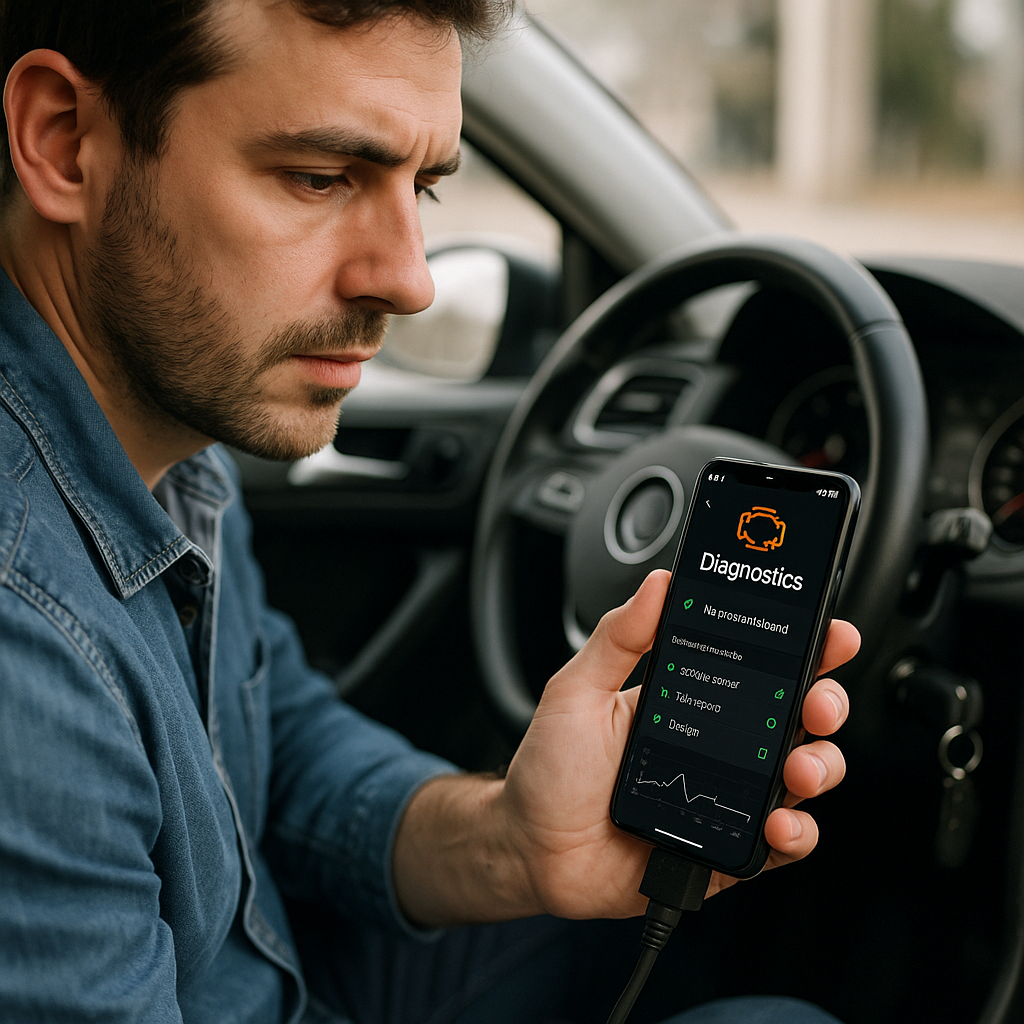
The app also allows you to create historical charts of monitored parameters. This means you can track how engine temperature evolves over the course of a trip, how battery voltage behaves during different driving conditions, or how fuel consumption varies as you drive in city or road. These visual data make it easy to identify patterns and help you make more informed decisions about maintaining your vehicle.
Advanced features that differentiate the best versions
The best mechanical scanner apps offer much more than just basic code reading. Many include the functionality to erase fault codes, allowing you to reset warnings after resolving the issue. However, you should be careful with this functionality, as deleting a code without fixing the underlying problem makes the warning temporarily disappear while the problem continues to exist. Use this consciously, only after confirming that the problem has actually been resolved.
Another advanced feature is the ability to parameterize certain vehicle systems. Some applications allow you to adjust settings such as ignition point, fuel mixture richness and other variables, but this functionality is available mainly in older vehicles and is not recommended for users without technical knowledge. Making incorrect changes can damage your engine, so use these options only if you know exactly what you are doing.
Many premium apps include an integrated database with information about your vehicle recalls. You type the license plate or chassis number, and the app checks for any unrealized recalls that may affect your safety.This is a valuable feature because it helps you to be informed about potential manufacturing issues that the manufacturer is solving for free, saving you from potential costs.
Preparing your car and your smartphone to use the tool
Before connecting the scanner for the first time, make sure that your smartphone has available storage space.The app itself does not take up much space, usually less than 100 MB, but it is good to have at least 500 MB free to ensure that everything runs smoothly. If your smartphone is too full, it may have difficulty processing the real-time data that comes from the scanner, causing crashes or inaccurate readings.
It is also important to check the compatibility of your vehicle before buying a scanner. Cars manufactured from 1996 have the standardized OBD-II connector, so any modern scanner will work. If you own a car older than 1996, you will probably need a scanner specific to the vehicle brand, as the connectors and communication protocols are different. Consult the scanner manufacturer or do a quick search on the model of your car to confirm compatibility.
Keep your smartphone battery charged when using the scanner, especially during longer diagnostic sessions.Bluetooth communication consumes battery, and you do not want your phone to turn off in the middle of the reading process.Some users prefer to keep the car off while reading the fault codes, since reading stored faults does not require the engine to be running and saves fuel.
Solving common connection problems
If the app cannot connect to the scanner, the first step is to check if the device is actually paired with your smartphone. Go to your phone’s Bluetooth settings and confirm that the scanner appears in the list of paired devices. If it does not appear, forget the device from your smartphone’s list and try to pair again from scratch, ensuring that the scanner is turned on and in discovery mode.
Another common problem is the scanner being connected but the application is unable to communicate with the car computer. This often occurs because the engine is not on. Always remember that you need to leave the engine in accessory mode, with the key turned to the second position before the starting point, or actually start the engine. Some newer cars require the engine to be running, while others work only with accessory mode.
If even after starting the engine the application continues to have communication problems, try to disconnect and reconnect the scanner in the OBD-II connector. Sometimes physical contact is not perfect on the first try. Remove the scanner, wait 10 seconds and replace it with a little more force. Also make sure that you are using an application compatible with the operating system of your smartphone, because not all apps work on both iOS and Android.
One last practical advice is to keep the scanner clean and protected.The OBD-II connector sits underneath the dashboard and can accumulate dust and moisture over time.If you notice that the scanner is having trouble connecting, gently wipe both the scanner connector and the OBD-II port of the car with a dry, soft cloth.This simple maintenance procedure solves most of the intermittent connection problems that users experience.