How to Clean iPhone Memory Quickly
Announcements
Your iPhone memory gets crowded quickly, affecting performance and slowing down your device. Learn advanced strategies to efficiently free up space and keep your device optimized.
Announcements
When you face storage issues on iPhone, the first reaction is to simply delete apps randomly. However, there are much more sophisticated and less harmful methods for memory wipe that you were unaware of. This guide introduces professional techniques that go beyond the basic steps, utilizing advanced optimization strategies to ensure your iPhone works to its fullest potential.
Learn How iPhone Memory Works
Your iPhone storage falls into two main categories: the space used by apps, photos, videos, and documents, and the space reserved by the operating system.When you receive the “Nearly Full Storage” notification, it means that iOS can no longer perform its operations efficiently. The system needs free space to create temporary files, cache, and process background tasks.
Unlike computers, iPhone does not allow you to access system folders or delete files manually without using specific applications. iOS is carefully structured to protect your data and maintain security, so any memory wipe should follow protocols established by Apple. Understanding this structure is essential before implementing optimization strategies, as it avoids errors that can impair the operation of the device.
Analyze Which Apps Consume the Most Space
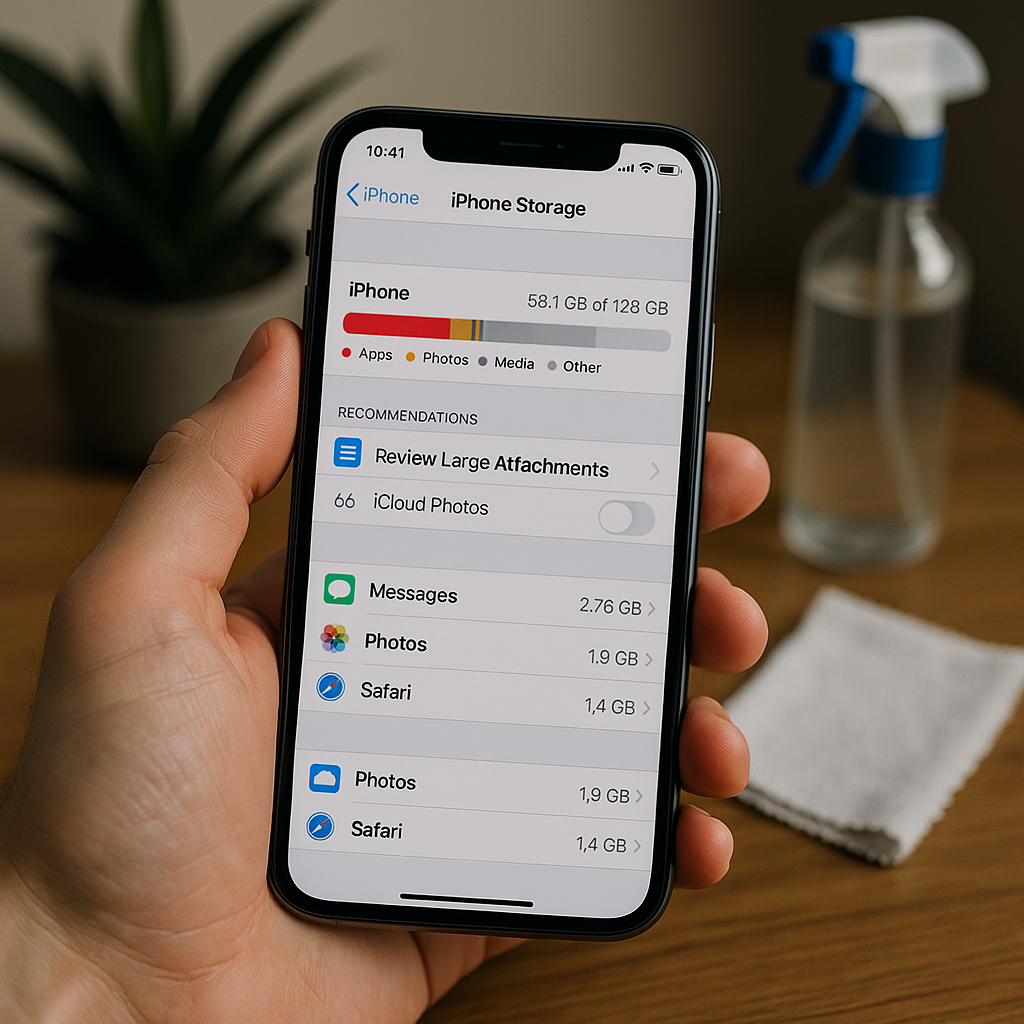
The first step in any advanced cleaning strategy is to identify exactly which apps are taking up the most memory on your iPhone. Go to Settings, then General, and tap iPhone Storage to view a detailed list of all installed apps, sorted by the amount of space each one occupies. Some apps like social networks, video streaming, and games consume absurd proportions of memory, often accumulating gigabytes of cached data.
When you look at this list, you will notice a pattern: the apps you use less often are the biggest culprits. Travel apps, tourism or shared documents can accumulate unnecessary historical data over the months. Before deleting any app, write down the top five space consumers, as you will use this information to implement specific optimization techniques without harming your daily use experience.
Implement Smart Cache Strategy
Caching is a temporary storage mechanism that apps use to load content faster the next time you open them. While caching offers speed benefits, it also consumes significant space without you realizing it. To implement a smart caching strategy, you must force apps that consume more data in the background to close. Swipe up on your iPhone home screen to access the multitasking manager and close apps that remain open unnecessarily.
A more advanced approach is to disable background data for apps that don’t need to be constantly synced. Go to Settings, General, Background Update, and turn off this feature for apps like social networks, games, and utilities that you rarely use. This not only frees up cached memory, but also saves battery. You can still use these apps normally; they simply won’t sync data when your iPhone is at rest.
Optimize Photo and Video Storage
Photos and videos account for the majority of storage consumption on virtually every iPhone. Instead of simply randomly deleting files, implement a smart cloud storage system using iCloud Photos. By enabling this functionality in Photo Settings, you authorize iPhone to keep only low-resolution optimized versions on the device, while high-resolution photos are stored on Apple servers.
In addition, you can review your photos and delete duplicates, those that have become blurry or out of focus. The iPhone has a native tool called Duplicate Photos that identifies similar images automatically. Go to the Photos app, tap Selection and look for repeated images, especially those captured in burst mode (when the iPhone takes multiple photos in sequence). Old videos of low quality or less important moments can be deleted without weighing in consciousness, especially if they have already been backed up in the cloud.
Clear Safari Navigation Data and Cookies
Browsers accumulate amazing amounts of cached data, including cookies, browsing history, website data, and stored images. Your Safari is constantly saving information to speed up page loading, but this behavior consumes significant memory over time. To clean this data intelligently, open Settings, go to Safari, and tap Clear History and Website Data. Choose a period (last 24 hours, last month, or the entire history) depending on how much space you need to free up.
An advanced strategy is to enable the “Privacy” option in Safari so that cookies and tracking data are automatically deleted when closing the browser. This setting is in Settings, Safari, Privacy, enabling the “Prevent cross-site tracking” option, in addition, you can disable Smart Download, which saves images from visited websites for faster loading. Although this improves speed, storage consumption eventually outweighs the benefits for users with limited space.
Use Temporary Documents and Support Files
Applications often create temporary files, supporting documents, and fragmented data that is no longer needed. When deleting a traditional application, you remove only the main executable, leaving behind a support folder in the Documents & Data directory. When you reinstall this application months later, these old files remain, taking up space unnecessarily. A professional strategy is to completely uninstall applications that you do not use regularly, wait a few seconds, and reinstall them only when necessary.
For apps you plan to keep, go to Settings, General, iPhone Storage, tap the specific app, and you’ll see how much space is consumed by Documents & Data only. If that number is disproportionate to the app’s size, consider deleting and reinstalling the app to eliminate those legacy files. Another method is to force a full sync via iCloud Cloud Photos to documents and files, ensuring that old and corrupt versions are overwritten by the updated and optimized versions.
Manage Messages and Attachments Strategically
The iPhone Messages app accumulates full conversations with photos, videos, and documents you’ve received over months or years. Each attachment is stored locally on your device, creating redundancy when the same image appears in multiple conversations.To implement smart cleaning, go to the Messages app, swipe over old conversations, and delete those that don’t contain important information.You can also use Edit to select multiple conversations at once, saving time.
A more sophisticated approach is to enable the “Keep Messages” option in Settings, Messages. You can choose to keep messages for 30 days, a year or indefinitely. For maximum memory cleanup, set to 30 days, allowing iOS to automatically delete old conversations.This does not affect your daily experience as you rarely consult old messages.If you fear losing important conversations, save screenshots of crucial messages in your Photo album before activating this cleaning automation.
Optimize Music Library and Media Content
If you use Apple Music or maintain a personal music library, these audio files can consume hundreds of megabytes or even gigabytes of space. Inside the Apple Music app, you can control exactly which songs, playlists, and podcasts are downloaded for offline access. Access your library, tap Edit next to each playlist, and disable downloads of music you don’t regularly listen to. Podcasts, in particular, grow exponentially if you don’t automatically manage which content is kept on your device.
Set your iPhone to delete podcast episodes automatically after watching or listening to them. Go to Podcasts, Edit, and adjust the auto-delete option. For video content, especially if you use streaming apps like Netflix or YouTube, turn off downloading videos for offline viewing unless you are traveling or without a nearby internet connection.
Restart iPhone Completely for System Cleanup
Sometimes storage reports being full even after deleting files because iOS maintains system caches that are not normally accessible. A full restart of the device forces iOS to discard these unnecessary caches and recalculate the available space. Hold the side button and one of the volume buttons simultaneously, swipe to shut down, and wait a few seconds before turning on again. This process, known as force restart, solves many storage inaccuracy reporting problems.
If the problem persists even after these measures, consider doing a full iPhone restore. Connect your device to a computer or Mac with Finder, click Restore, and let iOS be completely reinstalled. You can restore from an iCloud backup to recover your data, contacts and settings. This method offers the deepest possible cleaning, even removing data fragmentation that conventional methods cannot eliminate. Consider doing this at least once a year as preventive maintenance.
Configure Smart Cloud Storage Policies
ICloud offers 5GB of free storage, which is often not enough for backups, photos, and documents. An advanced strategy is to control exactly what is synced to the cloud to maximize space. Go to Settings, iCloud, and turn off syncing for apps you don’t need to keep backed up, such as games, streaming apps, or temporary utilities. Enable syncing only for critical data like contacts, calendars, notes, and reminder.
Also consider expanding your iCloud plan to 50GB or 200GB if you use your iPhone intensively. The cost is minimal (approximately $3.99 per month to 50GB) and offers peace of mind knowing that your data is completely synced and protected. With adequate cloud space, you can be more aggressive in cleaning up local memory as you know that any important file is safe in the cloud and can be restored easily when needed.
Disable Unnecessary System Features
Some iOS features are enabled by default but consume space and battery unnecessarily for many users. Siri, for example, maintains a full index of all your iPhone content to enable quick searches. If you don’t use Siri often, you can disable this functionality in Settings, Siri, and Search by unchecking the “Listen Hey Siri” option, this frees up the space consumed by the Siri index and the machine learning data the wizard collects.
Similarly, Spotlight Search, which indexes your content for quick search, can be optimized. Go to Settings, Siri, and Search, and disable indexing for apps and content types you don’t frequently search for. Spotlight Suggestions (suggestions that appear when you swipe down) can also be disabled if they cause distraction. Finally, disable iCloud Drive if you don’t use document synchronization, and disable iCloud Keychain synchronization if you manage passwords through a third-party password manager.
Implement Continuous Storage Monitoring
Cleaning iPhone memory is not a one-time activity, but an ongoing process that should be part of your maintenance routine. Set up monthly reminders to check storage, analyze which apps have grown in size, and implement optimization strategies as needed. A well-maintained iPhone offers better performance, longer battery life, and less overall frustration. Consider performing a deep clean every three months where you review all the categories mentioned in this article.
Keep a document or note on your iPhone recording when you cleaned, how much space you freed up, and what actions were most effective. Over time, you will identify patterns about which types of content grow fastest in your specific case. Maybe your photos are the biggest problem, or maybe they are podcasts and downloaded videos. By customizing your strategy based on concrete data from your own use, you ensure that your iPhone always works at peak efficiency, without sacrificing functionality that you really need.