Enjoy your Google TV with the perfect app
Announcements
Have you ever imagined having all your services streaming in one place, with personalized recommendations and the ease of watching offline?If you are looking for a more organized and efficient experience, this content is for you.
Announcements
With the centralization of platforms such as Netflix, Prime Video and Globoplay, you can forget about the confusion of switching between different interfaces download it allows you to take your favorite movies and series anywhere, even without internet.
Want to know how to simplify your entertainment routine? Discover the advantages of a single hub for your content and how to make the most of each function. Keep reading and transform your experience!
What is the Google TV app and why you need it
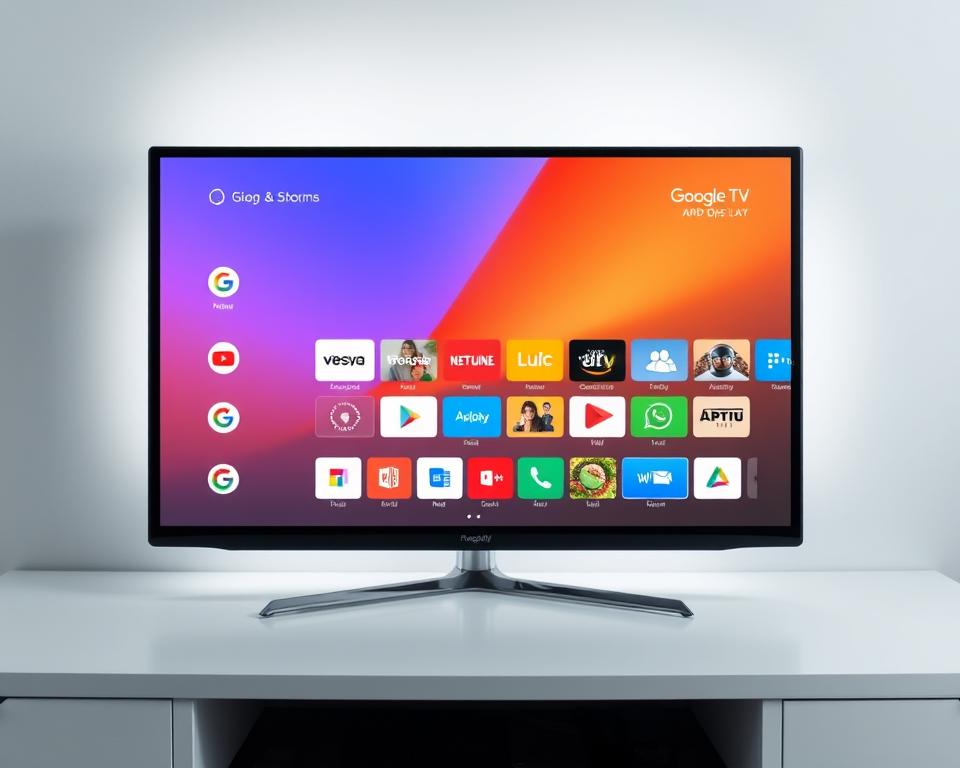
Imagine finding all your favorite movies and series on a single screen, without having to change platforms with each search. This is the main proposal of this solution, which aggregates content from more than 100 services in a simple and intuitive interface.

Discover everything in one place
The system works as a smart hub, organizing options from different platforms. For example, when searching “The Boys”, it directly shows you where to watch on Prime Video, saving you time.
Main benefits:
- Unified search across multiple services
- Automatic Watchlist synchronization between devices
- Real-time updates on new releases
Despite the advantages, some smaller services are not yet integrated. Compared to alternatives like ReelGood, curation could be more comprehensive.
Personalized recommendations
The algorithm learns from your viewing habits and suggests content aligned to your favorite genres.The more you use, the more accurate the indications become.
To improve the experience:
- Mark manually watched episodes
- Rate the titles you like
- Explore the “Discover” section regularly
A current limitation is episode tracking – as long as there is no native solution, it is worth setting up manual reminders so as not to miss your favorite shows.
How to install the Google TV app on your device
Want to transform your streaming experience with a few clicks?The process is simple, but requires attention to a few details to avoid common mistakes.
Step by step for installation
Before you start, make sure your device meets the minimum requirements: system Android 8.0 or higher. This ensures full compatibility.
To install in a Android TV:
- Access the app store on your device.
- Search for the service name and select “Install”.
- After downloading, open the program and follow the numeric code to link your account.
Em Smart TVs Samsung or LG, the process may vary. Some models require installation via USB or specific app store.
Solving common problems
If you get the “Incompatible device” error, try these solutions:
- Manually update the operating system.
- Reset factory settings to resolve crashes.
- Check for outdated versions of the service.
For those who use multiple accounts, remember to select the correct profile during linking. Issues with lost purchases can be resolved by contacting support.
Amazing features of the Google TV app
Did you know you can fully customize your entertainment experience? Discover unique functions that go beyond the basics and transform your streaming routine.
Create your wish list
Organize your favorite content in a practical way.With custom lists, you separate movies, series and documentaries by genre or mood.
Main advantages:
- Simple editing with drag and drop
- Sharing via link with friends
- Automatic suggestions based on your tastes
For those who love to marathon, synchronization with Google Calendar is perfect. Schedule binge-watching sessions without conflicts in the schedule.
Watch wherever and whenever you want
Do not let the lack of internet disrupt your entertainment.Offline mode allows you to download episodes and movies to watch later.
Tips for better experience:
- Turn on dark mode to save battery
- Adjust the video quality as per your connection
- Set up alerts to avoid mobile data overload
| Appeal | Advantage | How to activate |
|---|---|---|
| HD Automatic | Quality adaptable to the device | Settings > Streaming quality |
| Energy Saving | Up to 30% longer playback time | Night mode + reduced brightness |
| Data Control | Avoid surprises on the invoice | Consumer notices > Custom limit |
With Chromecast, the HD experience is maintained even on mobile devices. Ideal for those who do not give up the best image on any screen.
Use your phone as a Google TV remote
Lost the remote?Your mobile phone can replace it easily! With a few tweaks, you turn your device into a command complete, ideal for typing passwords or navigating without complications.
How to sync your device
On devices google android, the connection is fast. Just go to the settings menu and turn on the “Remote control” option Choose between Bluetooth or Wi-Fi to pair.
Tips to avoid desynchronization:
- Keep both devices on the same network.
- Update the operating system regularly.
- Restart the application if there is a delay in the commands.
Playback and volume control
The smartphone’s virtual keyboard makes typing easy. To pause, advance or adjust the volume, simply use the on-screen buttons or custom gestures.
Common problems and solutions:
- Commands do not respond? Check the connection.
- Google Assistant shortcuts not working? Reconfigure in the menu.
- Parental control blocked functions? Adjust profiles in settings.
With these tips, you will have a command versatile always at hand!
Stream videos to your TV with ease
Watching your favorite content on the big screen has never been simpler.With the right technology, you can bring movies, series and music straight to your main screen in seconds.
Connect to the same network
To get started, make sure all devices are on the same Wi-Fi network part most important to ensure a stable transmission.
Tips for better connection:
- Place the router next to the TV
- Avoid public or shared networks
- Test the minimum speed of 15 Mbps for HD
If you encounter codec issues, update the video players or use compatible formats such as MP4 or MKV.
Tips to save battery
Transmitting for long periods can consume energy quickly. Learn how to extend the life of your device.
Best practices:
- Activate airplane mode when you don’t need internet
- Reduce screen brightness in dark environments
- Close other apps in the background
| Service | Minimum Quality | DRM |
|---|---|---|
| Netflix | 5 Mbps (HD) | Yes |
| YouTube | 2.5 Mbps (HD) | No |
| Spotify | 0.5 Mbps | Yes (music) |
With Chromecast, you can even turn off your phone after you start playing. The content keeps running uninterrupted on the TV.
For premium content with DRM protection, always check your account permissions.Some services require an active subscription to stream.
Managing your apps on Google TV
Organizing your favorite shows can be easier than you think. With a few tips, you can turn the experience into something fast and personalized.
Find and add new content
The online store offers filters by category, such as children’s movies or sports command voice to search quickly.
Tips to install:
- Use the webshop website to install on multiple devices at once
- Virtual cards and PayPal are secure payment options
- Check the indicative rating before downloading
Customize your space
Create themed folders by dragging the icons. Thus, you separate games, movies and music services without confusion.
To clean the space:
- Press the “Options” button on the command
- Select “Uninstall in batch”
- Mark unused programs
Issues with regional restriction?Changing DNS can free up international catalogs.But beware: some services require local subscription.
Conclusion
Transform your entertainment experience with an intelligent hub that combines practicality and customization. Version 3.27 (may/2025) brought improvements such as integration with Google Home and more precise recommendations.
Compared to the Apple ecosystem, the system offers greater flexibility for devices Android. In addition, future updates promise connection to services like Stadia for gamers.
Be sure to test! Enjoy download features, personalized lists and control by mobile. Share your feedback in the online store to help shape the next news.
Ready to get started? Follow our starter guide and find out how to simplify your streaming today!
FAQ
What is Google TV and how does it work?
It is a platform that brings together movies, series and apps in one place. It uses intelligence to suggest content based on your tastes.
How to install the app on my device?
Just go to the app store on your phone or smart TV, search for “Google TV” and click install.
Can I use my smartphone as a remote control?
Yes! Download the official app on your phone, connect it to the same Wi-Fi network as your TV and enjoy the playback and volume controls.
How do I add content to my wish list?
When you find a movie or series you like, just select the heart icon. It will be saved for you to watch later.
Why do some apps not appear in recommendations?
The system prioritizes suggestions based on what you watch the most. You can adjust preferences in settings to refine results.
How do I stream videos from my phone to my TV?
Connect both to the same Wi-Fi network, open the video on your mobile and tap the broadcast icon. Select your TV and voila!
Can I rearrange the order of apps on the home screen?
Of course! Hold the desired app and drag to the preferred position. You can also remove the ones you no longer use.
What to do if the app is not working?
Try restarting your device or updating the app. If the problem persists, check your internet connection.